
How to record gameplay without lag usually comes down to one thing: your game and your recorder are fighting for the same CPU/GPU, disk, and RAM at the same moment. The good news is you don’t need a brand-new PC to get smooth footage, you need the right capture method, sane settings, and a quick checklist to spot the real bottleneck.
If you’ve ever hit record and watched your FPS dip, your input feel mushy, or your final video show stutter and “dropped frames,” you already know why this matters. Lag ruins gameplay, and it also ruins watch time, even if your edits are great.
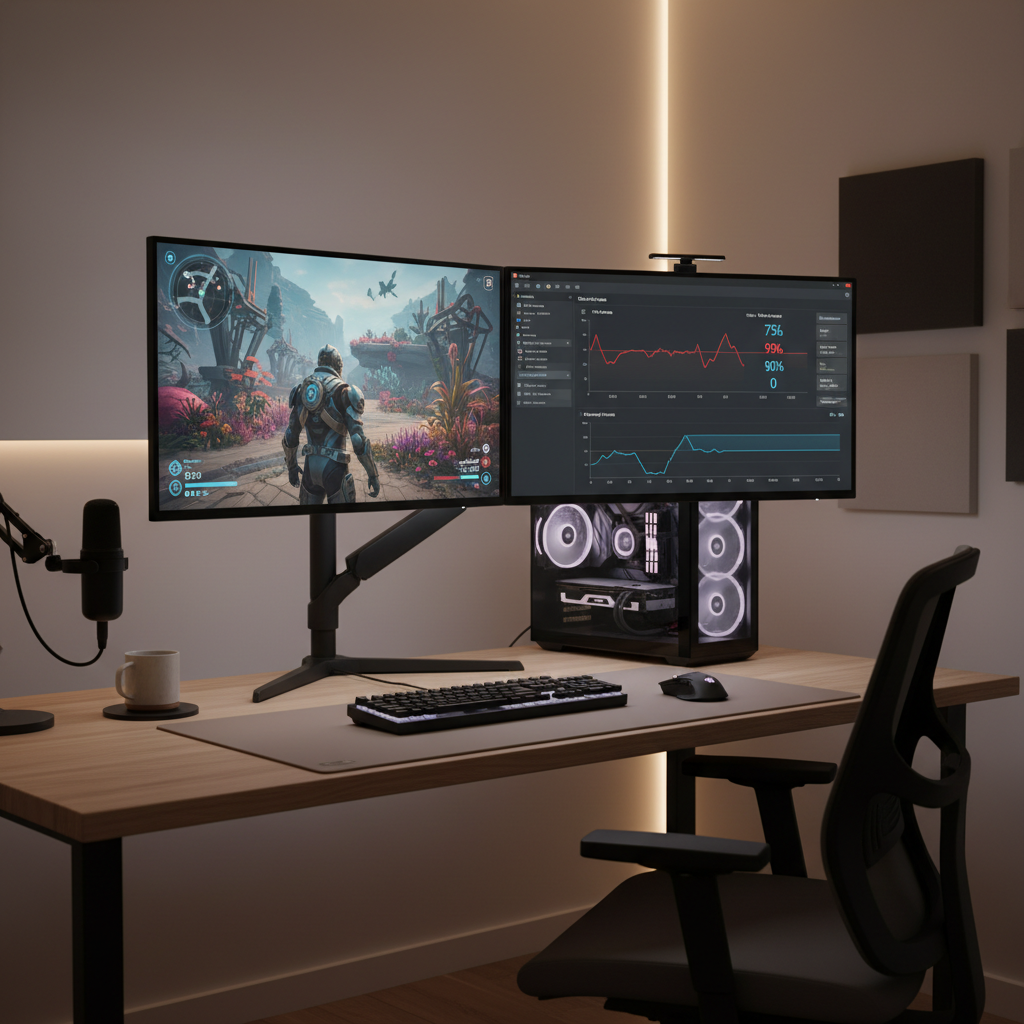
This guide focuses on practical fixes that work for most U.S. setups: OBS Studio (common), NVIDIA/AMD/Intel hardware encoders, and a few “don’t do this” traps that cause lag even on powerful rigs. You’ll also get a simple table of recommended settings, plus a fast self-test to figure out what’s actually causing the drops.
Why gameplay recording lags (the real bottlenecks)
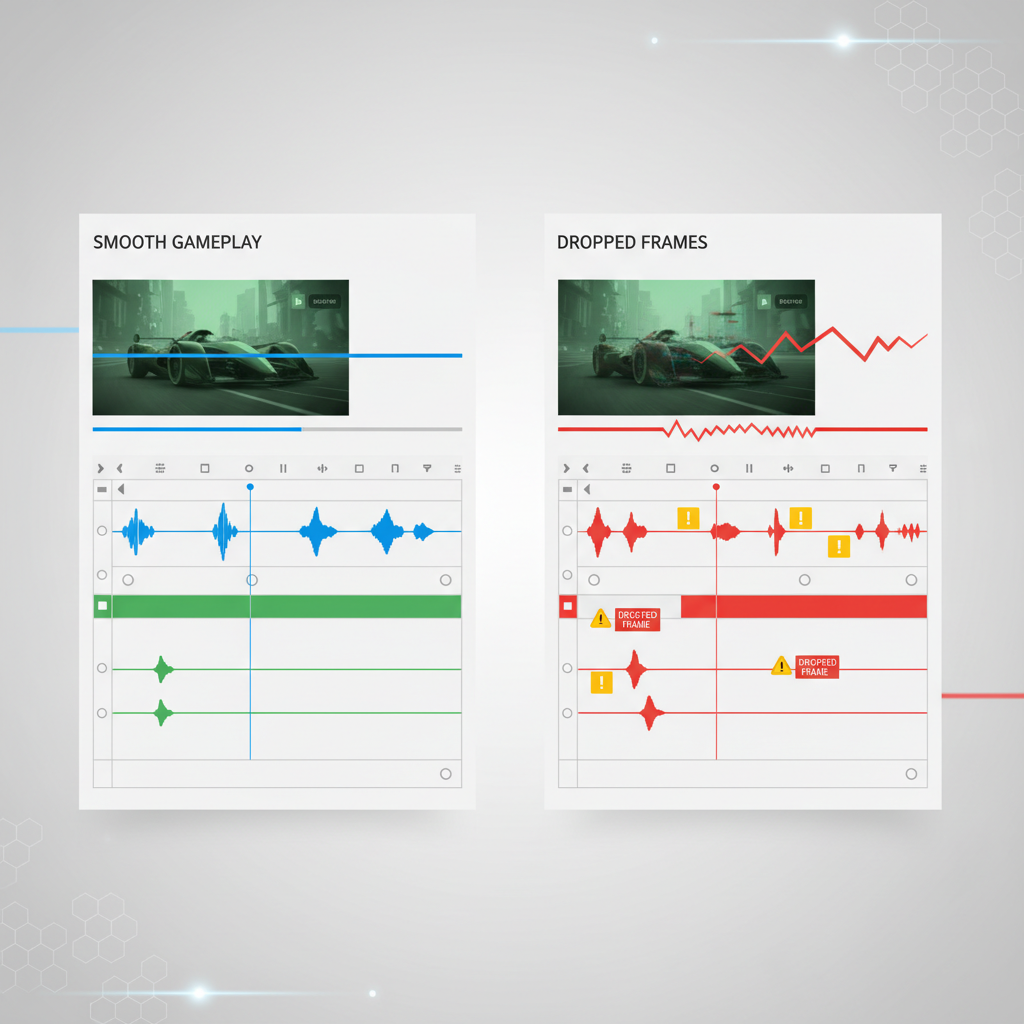
Recording is not just “saving what you see.” It’s encoding (compressing) video in real time, writing it to storage, and often capturing multiple audio sources. When any one piece can’t keep up, you see stutter, missed frames, or audio drift.
- Encoder overload: CPU-based encoding (x264) can look great but can spike CPU usage, especially in fast games, big fights, or open-world scenes.
- GPU contention: Even with GPU encoding, the game still needs GPU time. If you run uncapped FPS with high settings, the encoder can get starved.
- Disk write speed: High bitrate recording to a slow HDD (or an almost-full drive) can cause “encoding overloaded” warnings and frame drops.
- Resolution/FPS mismatch: Recording 4K60 when you play 1080p, or scaling inside the recorder with poor settings, adds overhead.
- Background apps: Browsers with video tabs, RGB software, overlays, cloud sync, and antivirus scans can all create micro-stutter.
According to NVIDIA, using NVENC (their dedicated hardware encoder) can reduce CPU load compared with CPU encoding, which is why it’s a common fix when recording makes games hitch.
Quick self-check: what kind of “lag” do you actually have?
People say “lag” but mean different problems. Identify yours first, because the fix changes.
1) Game FPS drops while recording
- FPS falls the moment you hit record
- Input feels delayed or inconsistent
- GPU usage sits near 95–99% in-game
Likely cause: GPU contention or too-high in-game settings, sometimes combined with heavy scaling in the recorder.
2) The recording is choppy, but the game felt fine
- Playback shows stutter
- OBS shows “Dropped Frames (Encoding)” or “Skipped Frames (Rendering)”
- Audio seems okay, video looks uneven
Likely cause: encoder overload, wrong capture method, or storage write issues.
3) Audio desync or drifting over time
- Audio lines up at the start, then slowly shifts
- Multiple audio devices involved (USB mic + headset + capture card)
Likely cause: sample-rate mismatch, device clock differences, or using “Display Capture” when you should use a game capture source.
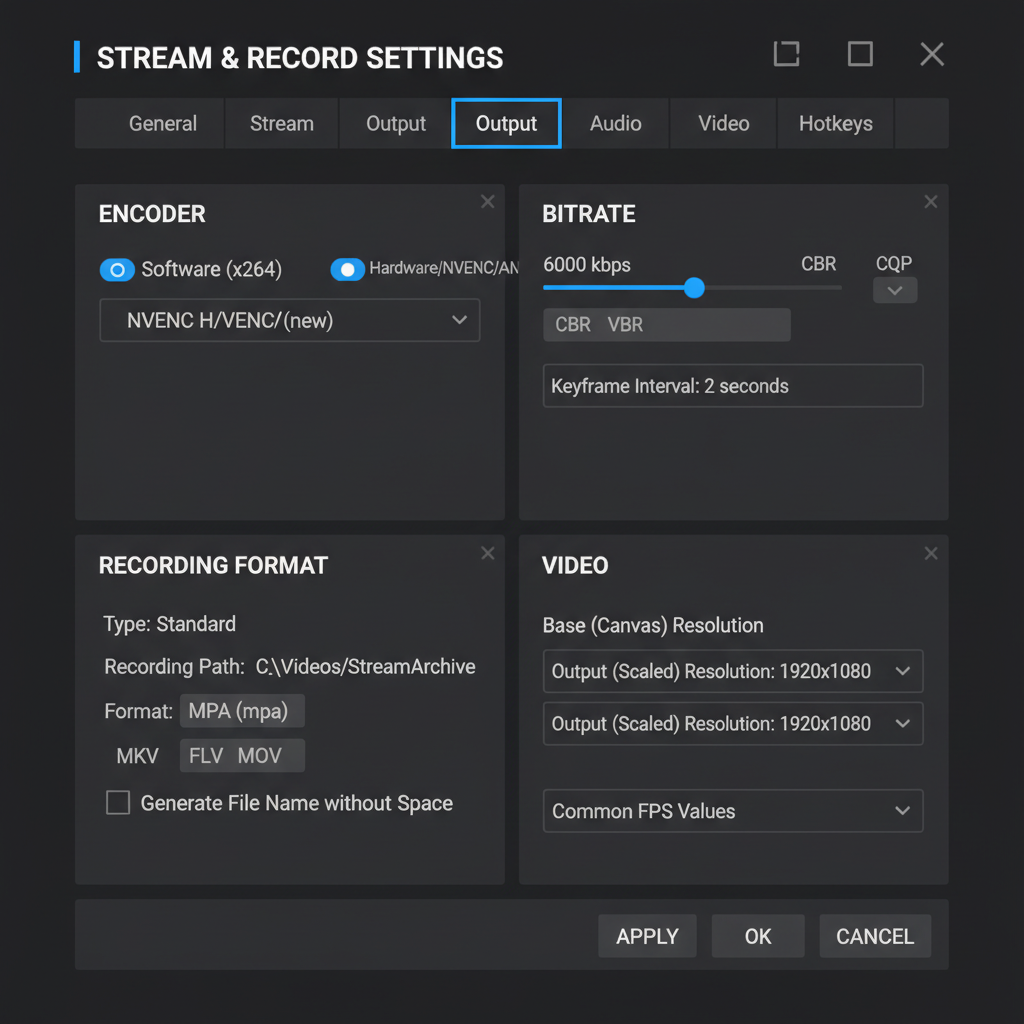
Recommended recording settings (balanced, low-lag defaults)
If your goal is smooth gameplay first and clean footage second, start here. You can always push quality later once your pipeline stays stable for a full match.
| Scenario | Resolution/FPS | Encoder | Bitrate / Quality | Notes |
|---|---|---|---|---|
| Most PCs, 1080p gameplay | 1080p60 | Hardware (NVENC/AMF/QSV) | CQP 18–22 or ~20–30 Mbps | Best “no drama” starting point |
| Midrange PC struggling | 1080p30 or 900p60 | Hardware | CQP 20–24 or ~12–20 Mbps | Lower load, still looks good |
| High-end PC, fast shooters | 1440p60 | Hardware | CQP 18–20 or ~35–50 Mbps | Make sure storage can keep up |
| Editing-heavy workflow (archival) | 1080p60+ | Hardware or x264 (if CPU headroom) | Higher bitrate / lower CQP | Consider separate recording drive |
Key point: Use a hardware encoder when available, and avoid “lossless” or extremely high bitrates unless you’ve confirmed your drive can write continuously at that speed.
Step-by-step: fix lag in OBS (or similar tools) without killing quality
This is the practical sequence that usually resolves most cases. Don’t tweak ten things at once; change one, test for a full session, then move on.
Use the right capture source
- Game Capture for most PC games. It’s usually lighter and more stable than capturing the full display.
- Window Capture only if Game Capture misbehaves (some anti-cheat titles can be picky).
- Display Capture as a last resort, because it often adds overhead and can cause stutter on some setups.
Switch to hardware encoding
- NVIDIA: NVENC (H.264 or HEVC)
- AMD: AMF (H.264/HEVC)
- Intel: Quick Sync Video (QSV)
If you want the simplest stability win, this is often it. According to AMD, their hardware encoding via AMF is designed to offload encoding tasks from the CPU, which can help maintain game performance during capture.
Cap in-game FPS (seriously)
Many “dropped frames” problems disappear when the GPU gets breathing room. If you play uncapped at 240 FPS, your encoder and compositor may get whatever scraps are left.
- Set an in-game cap a bit below your typical max, for example 120 or 144.
- If you use G-Sync/FreeSync, keep the cap within the VRR range.
- Turn off or reduce heavy GPU features (ray tracing, ultra shadows) before you lower resolution.
Reduce scaling work
- Match Base (Canvas) and Output (Scaled) resolution when possible.
- If you must downscale, use a reasonable filter. Lanczos looks good but can cost more; Bicubic often balances quality and load.
Record to the right drive
- Prefer an SSD with free space. Near-full drives can slow down in messy ways.
- Avoid recording to the same HDD that’s also loading the game assets.
- Use a simple local folder, not a cloud-synced path.
Common mistakes that cause stutter (even on good PCs)
These show up constantly in “why is my recording choppy” threads, because they feel unrelated until you test.
- Recording at 4K “just because”: It multiplies encoder and disk demands, and many viewers still watch in 1080p.
- Running multiple overlays: Discord overlay, GPU overlay, capture overlay, FPS counters, and RGB tools can stack up.
- Wrong color format expectations: Pushing unusual formats can add conversions. Most people should leave advanced color settings alone unless they know why.
- Lossless recording: Great in theory, brutal in practice. The file sizes and write speeds can spiral quickly.
- Not testing a full-length session: A 30-second clip can look fine, then drift or drop frames after 20 minutes.
Platform-specific tips: PC, consoles, and capture cards
The “no lag” approach changes a bit depending on where the game runs.
PC (single machine)
- Prioritize hardware encoding and an FPS cap.
- Use Game Capture and keep scene complexity low during recording.
- Update GPU drivers, but if a brand-new driver causes problems, rolling back can be reasonable.
PC (two-PC setup)
- Gaming PC runs the game, streaming/recording PC handles encoding.
- This is how many creators avoid performance hits, but it costs money and adds setup complexity.
Consoles (PS5/Xbox/Switch)
- Built-in recording is convenient and usually stable, but quality controls can be limited.
- A capture card moves encoding to your PC; if the PC is weak, you can still get dropped frames.
- Audio routing becomes the tricky part. Keep sample rate consistent (commonly 48 kHz) across devices.
When you should consider deeper troubleshooting (or help)
If you’ve tried sane settings and still can’t get stable footage, it might be a system-level issue rather than “one magic OBS option.”
- Frequent skipped frames (rendering): often points to GPU overload, driver issues, or heavy scenes/filters.
- Frequent dropped frames (encoding): often points to encoder overload, too-high quality settings, or CPU limits.
- Storage warnings: consider an SSD upgrade, or record to a different drive.
- Persistent audio drift: check device sample rates and consider consulting a knowledgeable AV technician if it’s a multi-device capture chain.
According to Microsoft Support, keeping Windows and device drivers updated can improve stability and compatibility; it’s not a guaranteed fix, but it removes a common source of weird capture behavior.
Key takeaways (so you can act fast)
- Use hardware encoding unless you truly have CPU headroom for x264.
- Cap FPS to give the encoder room, especially on high-refresh monitors.
- Record at 1080p60 first, then scale up after you confirm zero drops.
- Record to an SSD with plenty of free space and a simple local path.
- Change one setting at a time, test a full match, then keep the winner.
Conclusion: smooth gameplay first, then push quality
If you want to record without stutter, treat your recording setup like performance tuning: stabilize the pipeline, confirm zero dropped frames, then increase resolution or quality in small steps. Start with hardware encoding, a reasonable FPS cap, and an SSD target folder, and you’ll usually get clean footage without sacrificing how the game feels.
If you’re stuck, take 10 minutes to run the self-check above and note whether the issue is game FPS, recording drops, or audio drift, then adjust only the settings that match that symptom. That one habit saves hours of random tweaking.
FAQ
How do I record gameplay without lag on a midrange PC?
Use a hardware encoder, record at 1080p30 or 900p60, and cap in-game FPS. Midrange systems often struggle more from GPU saturation than from “not enough RAM.”
Why does OBS say “encoding overloaded” when my CPU usage looks fine?
CPU averages can hide spikes, and the bottleneck may be the encoder preset, resolution, or disk writes. Lower the recording quality target (higher CQP number or lower bitrate) and confirm you’re recording to a fast local drive.
Is x264 better than NVENC for recording?
Sometimes for quality per bitrate, yes, but it depends on your CPU headroom and the content. If the goal is smooth play, hardware encoding is often the safer pick.
What’s a good bitrate for 1080p60 gameplay recording?
Many setups look solid around 20–30 Mbps for H.264, but quality also depends on the encoder and motion complexity. If you use CQP/CRF-style controls, start in the 18–22 range and adjust after a full-session test.
Why is my recording choppy but the game runs smoothly?
That usually means the recording pipeline is dropping frames, not the game. Check for skipped/dropped frames in your recorder stats, switch capture method to Game Capture, and reduce scaling or scene filters.
Does recording in HEVC (H.265) reduce lag?
It can reduce file size at similar quality, but it may increase compatibility issues in editors or players. Performance varies by GPU and settings, so it’s worth testing, not assuming.
How can I prevent audio desync when recording gameplay?
Keep all devices on the same sample rate (commonly 48 kHz), minimize the number of separate audio devices, and avoid unnecessary capture layers. For complex capture card setups, a targeted audio configuration review can help.
If you’re trying to record regularly and you want a more “set it once” workflow, it can help to document your stable settings (encoder, CQP/bitrate, FPS cap, record drive) and reuse them per game, instead of reinventing the setup every session.