
how to enable hdr in pc games is easy to toggle, but getting HDR to look right takes a little coordination between Windows, your GPU settings, your display, and the game itself.
If HDR looks gray, overly dim, neon-bright, or inconsistent between games, it usually means one link in that chain is misconfigured. The good news is you can typically fix it with a repeatable checklist, not random slider guessing.
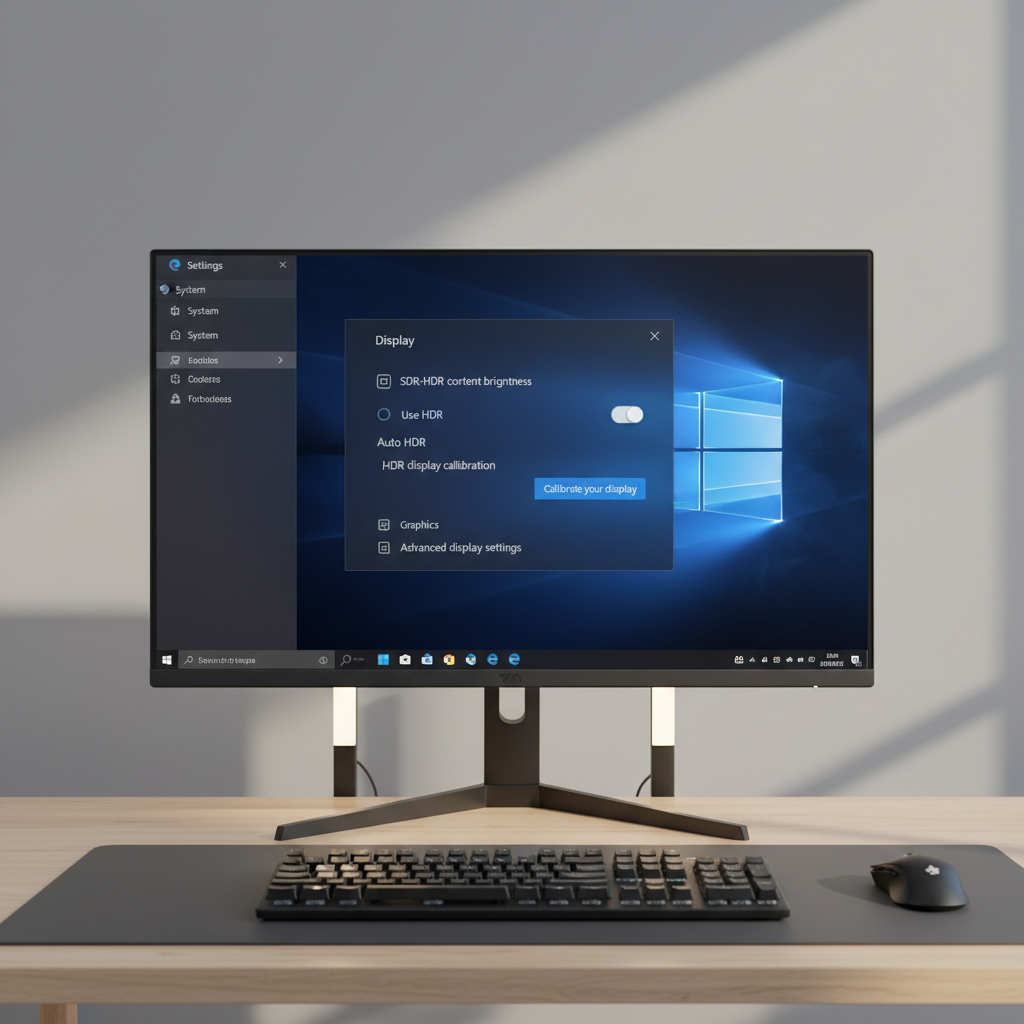
Below is a practical, game-by-game friendly approach: confirm your hardware path, set Windows correctly, use the right color format, then calibrate per game so highlights pop without crushing shadow detail.
Confirm your HDR “pipeline” before you touch any sliders
Before you troubleshoot the game, verify the full signal chain supports HDR. HDR can fail silently if any piece in the middle falls back to SDR.
- Monitor/TV: Must support HDR (common labels: HDR10). Also check peak brightness and local dimming capabilities; “HDR supported” does not always mean “HDR looks great.”
- Cable and port: Use a known-good HDMI/DisplayPort cable rated for your resolution and refresh rate. Many HDR issues come from bandwidth limits that force reduced chroma or odd fallbacks.
- GPU support: Modern NVIDIA/AMD GPUs generally support HDR output, but drivers must be current.
- Correct input mode on the display: Many TVs require enabling “HDMI Enhanced,” “Input Signal Plus,” or a similar setting per port.
- Disable double-processing: If your monitor has its own HDR tone mapping modes, you may need to pick a standard HDR preset rather than a heavily “enhanced” one.
According to Microsoft Support, HDR in Windows depends on having compatible hardware and enabling HDR in Display settings, and it can behave differently depending on the content and display capabilities.
Set Windows HDR the right way (Windows 11 and Windows 10)
Windows is where most “HDR looks washed out” complaints start, especially when switching between SDR desktop apps and HDR games.
Windows 11 quick path
- Go to Settings → System → Display → HDR.
- Turn HDR on for the correct monitor.
- If available, run Windows HDR Calibration to set black level, peak brightness, and color saturation.
- Adjust SDR content brightness so the desktop doesn’t look foggy while HDR stays usable for games.
Windows 10 quick path
- Go to Settings → System → Display.
- Under Windows HD Color, enable Play HDR games and apps.
- Use the SDR content appearance slider to make the desktop readable without blowing out highlights.
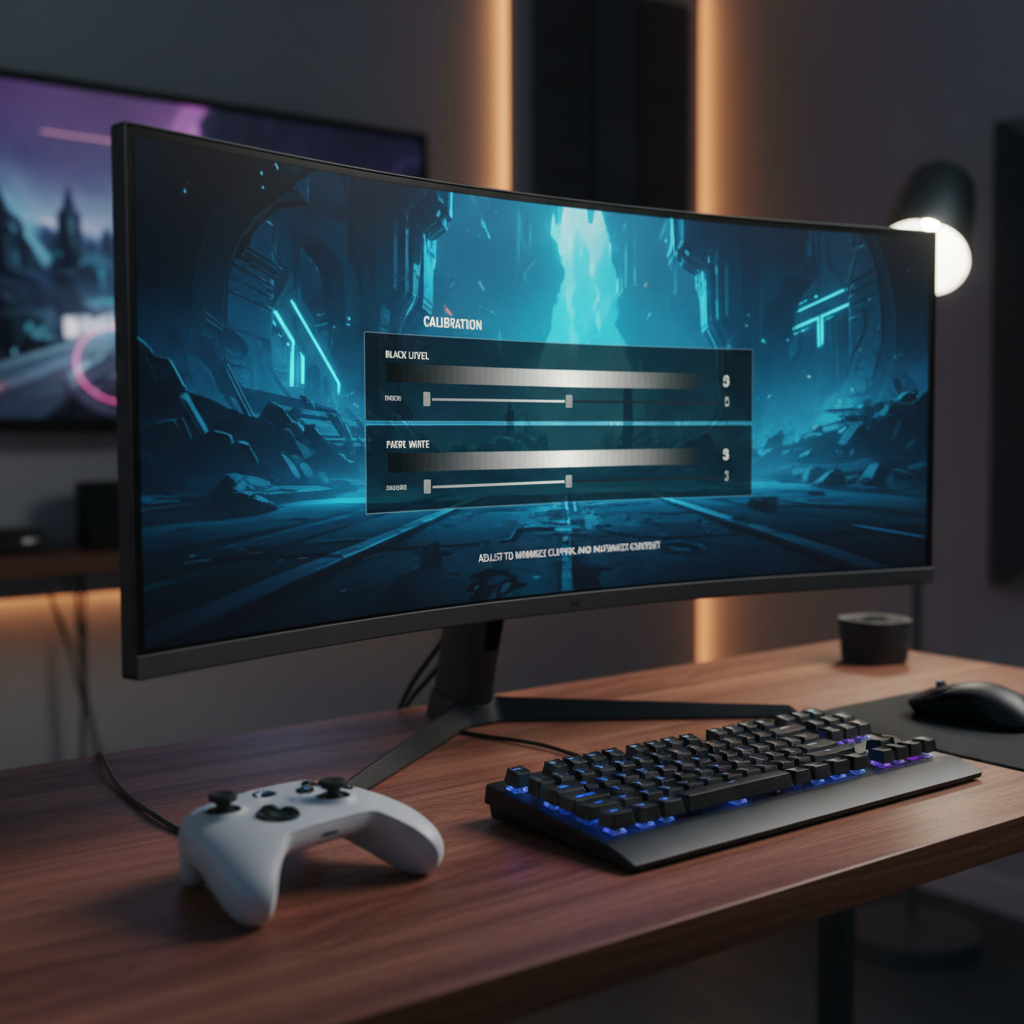
One small but real-world tip: if you use multiple monitors, set the HDR display as your main display when testing. Mixed HDR/SDR setups can create confusing behavior in overlays and capture tools.
GPU control panel settings that commonly break HDR
When people ask how to enable hdr in pc games, they often forget the GPU can override color format and dynamic range. That’s where “why are my blacks gray” usually lives.
NVIDIA (Control Panel)
- Open NVIDIA Control Panel → Change resolution.
- Use the display’s native resolution and intended refresh rate.
- Under “Use NVIDIA color settings,” try:
- Output color format: RGB (preferred for monitors), or YCbCr 4:2:2 for some TVs at high refresh rates.
- Output dynamic range: Full for PC monitors; Limited may be needed for certain TVs depending on their HDMI black level setting.
- Output color depth: 10 bpc if your bandwidth allows it at your chosen refresh rate.
AMD (Adrenalin)
- Check Display settings for Color Depth (10-bit where supported).
- Verify Pixel Format options; choose RGB 4:4:4 Full for monitors when available.
If HDR works but looks “wrong,” the fastest sanity check is toggling between RGB Full and Limited while also checking the TV/monitor black level setting. Mismatches cause lifted blacks or crushed shadows.
In-game HDR setup: what the sliders actually mean
Games implement HDR in different ways, so you can’t treat every HDR menu as the same. Still, most games expose a few recurring controls.
| Common Control | What it affects | Typical mistake |
|---|---|---|
| Peak Brightness / Max Luminance | How bright highlights can get before clipping | Setting it too high makes the image look flat or “glowy” |
| Paper White | Brightness of UI and mid-tones | Too high makes menus blinding, too low makes everything dull |
| Black Level | Shadow detail and true black point | Too low crushes detail, too high creates gray haze |
| HDR Contrast / Tone Mapping | How highlights roll off into bright areas | Cranking it creates harsh, artificial highlights |
A reliable workflow: set black level first (so dark scenes keep detail), then paper white (so HUD and menus feel normal), then peak brightness (so bright effects pop without blowing out clouds, snow, or flashlights).
Quick self-check: identify your HDR problem in 2 minutes
If you’re not sure where the issue sits, use this checklist to categorize the symptom. It saves time and keeps you from “fixing” the wrong layer.
- Washed-out desktop and games: Windows HDR on, but SDR brightness slider too high, or display set to wrong dynamic range.
- Games look too dark only in HDR: In-game paper white too low, black level too low, or TV tone mapping conflicts with game.
- Highlights clip (white blobs): Peak brightness set above your display capability, or an aggressive HDR preset on the display.
- Colors look neon/oversaturated: Display “vivid” mode, game saturation pushed, or Windows HDR calibration saturation too high.
- HDR toggle does nothing: Game may require exclusive fullscreen, or Windows HDR must be enabled before launching.
- Flicker/handshake issues: Cable/port bandwidth, VRR + HDR compatibility quirks, or unstable refresh rate setting.
According to NVIDIA Support documentation on display configuration, correct output color format and dynamic range selection are important for accurate image reproduction, and mismatches can lead to incorrect blacks and contrast.
Step-by-step: enable HDR in PC games without the common traps
This is the repeatable sequence that tends to work across most setups. It also keeps you from changing five variables at once.
- Step 1: Update GPU drivers, then reboot. HDR bugs often get fixed quietly in display pipeline updates.
- Step 2: Enable HDR on the monitor/TV input (enhanced HDMI mode if needed), pick a neutral HDR picture preset.
- Step 3: Turn on HDR in Windows, then run HDR calibration (Windows 11) or adjust SDR balance (Windows 10).
- Step 4: Set GPU output to the correct format and range (try RGB Full first for monitors).
- Step 5: Launch the game, enable HDR in its settings, then do the in-game calibration in a dark scene and a bright scene.
- Step 6: Re-check UI brightness and overlays. If the HUD burns your eyes, lower paper white rather than peak brightness.
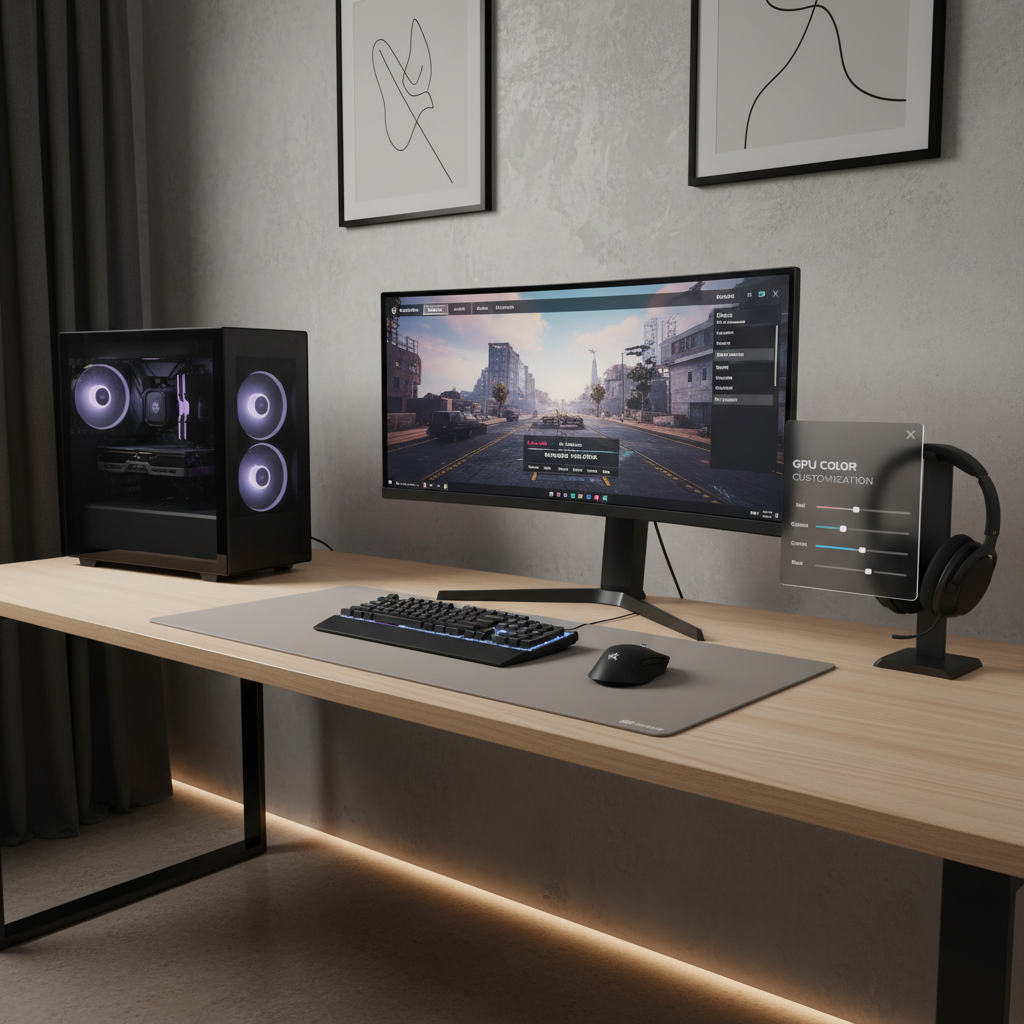
If you want the simplest rule: let the game handle tone mapping when it offers a well-designed HDR calibration, and avoid stacking “dynamic contrast” or “HDR enhancement” features from the display on top of it unless you’ve tested the result carefully.
Common mistakes that make HDR worse (even when it’s “enabled”)
- Leaving the display in a showroom preset: “Vivid” modes can look punchy in a store, but they often crush detail in actual gameplay.
- Using Limited range on a monitor: Many PC monitors expect Full range; Limited can make everything look gray.
- Assuming HDR400 equals great HDR: Entry HDR certifications can improve highlights a bit, but they may not deliver the dramatic contrast people expect.
- Calibrating in a bright room: Ambient light changes your perception of black level and contrast, and you end up overcorrecting.
- Forgetting per-game profiles: One game’s “paper white 200” might equal another game’s “paper white 100.” Treat each game separately.
Key takeaways: correct Windows HDR, correct dynamic range, correct in-game paper white and peak brightness, and avoid double tone mapping.
When to seek deeper help (or accept SDR for that title)
Some HDR problems aren’t user error. A few games ship with shaky HDR implementations, and some TVs/monitors have quirks with VRR, 4K120, or certain color formats.
- If HDR causes consistent flicker or signal drops, consider testing a different cable/port, reducing refresh rate, or disabling VRR to isolate the cause.
- If only one specific game looks broken in HDR while others look fine, it may be that game’s tone mapping. In that case, SDR can be the better experience until patches arrive.
- If you suspect a hardware defect (random black screens, artifacts), contact the display or GPU manufacturer support, or consult a qualified technician.
According to Microsoft Support guidance on HDR, compatibility can vary by device and content type, and troubleshooting may involve driver updates and display setting adjustments.
Conclusion: a clean HDR setup is mostly about consistency
If your goal is to learn how to enable hdr in pc games and have it look genuinely better, focus on consistency across the chain: Windows HDR on and calibrated, GPU output range correct, display in a neutral HDR preset, then per-game tuning for black level, paper white, and peak brightness.
Pick one game you know well, dial it in, write down the values that work, then replicate the same logic elsewhere. If your HDR still looks worse than SDR after that, it’s reasonable to stick with SDR for that title and move on.
FAQ
Why does HDR look washed out on my Windows desktop?
This usually comes from SDR being mapped into HDR space. Adjust the Windows SDR brightness balance, and confirm your GPU dynamic range matches the display (Full vs Limited).
Do I need to enable HDR in Windows before launching a game?
Many games detect HDR at launch and won’t expose HDR options unless Windows HDR is already enabled. If the HDR toggle is missing, enable HDR in Windows first, then restart the game.
Should I use Auto HDR on Windows 11?
Auto HDR can help some SDR games look better, but results vary by title and display. If a game has native HDR, start with native HDR and compare.
What’s the difference between paper white and peak brightness?
Paper white controls overall mid-tone and UI brightness, peak brightness targets highlight intensity. If menus are too bright, lower paper white rather than nerfing peak highlights.
Why does HDR look too dark in certain games?
Often the in-game black level or paper white sits too low, or your display applies extra tone mapping. Try a neutral HDR picture mode and redo the in-game calibration slowly.
Is HDR better than SDR for competitive gaming?
Not always. HDR can reduce visibility in shadows depending on settings, and some players prefer consistent SDR. If you’re tuning for ranked play, prioritize clarity over “pop.”
Do I need a 10-bit panel for HDR on PC?
It helps, but some displays use 8-bit + dithering and still support HDR input. What matters is the overall HDR performance: contrast, peak brightness, and tone mapping quality.
Can VRR (G-SYNC/FreeSync) cause HDR issues?
It can in some setups, especially at high bandwidth modes like 4K 120Hz. If you see flicker or handshake problems, test HDR with VRR off to isolate the variable.
If you’re still stuck after following the checklist, a “less fiddly” approach is to share your exact monitor/TV model, GPU, cable type, and the game title you’re tuning, because HDR behavior is very hardware-specific and a targeted setup can save hours of guesswork.