
how to fix missing dll files for games usually comes down to one thing: the game can’t find a shared Windows library it expects, so it fails at launch or crashes at a specific moment.
If you’re seeing errors like “VCRUNTIME140.dll was not found,” “d3dx9_43.dll missing,” or “XINPUT1_3.dll missing,” you’re not alone, and you also don’t need to randomly download DLLs from sketchy sites to get unblocked.
This guide walks through the practical fixes that tend to work in the real world, how to identify which DLL family you’re dealing with, and when the issue is a symptom of something bigger like corrupted system files or a broken install.
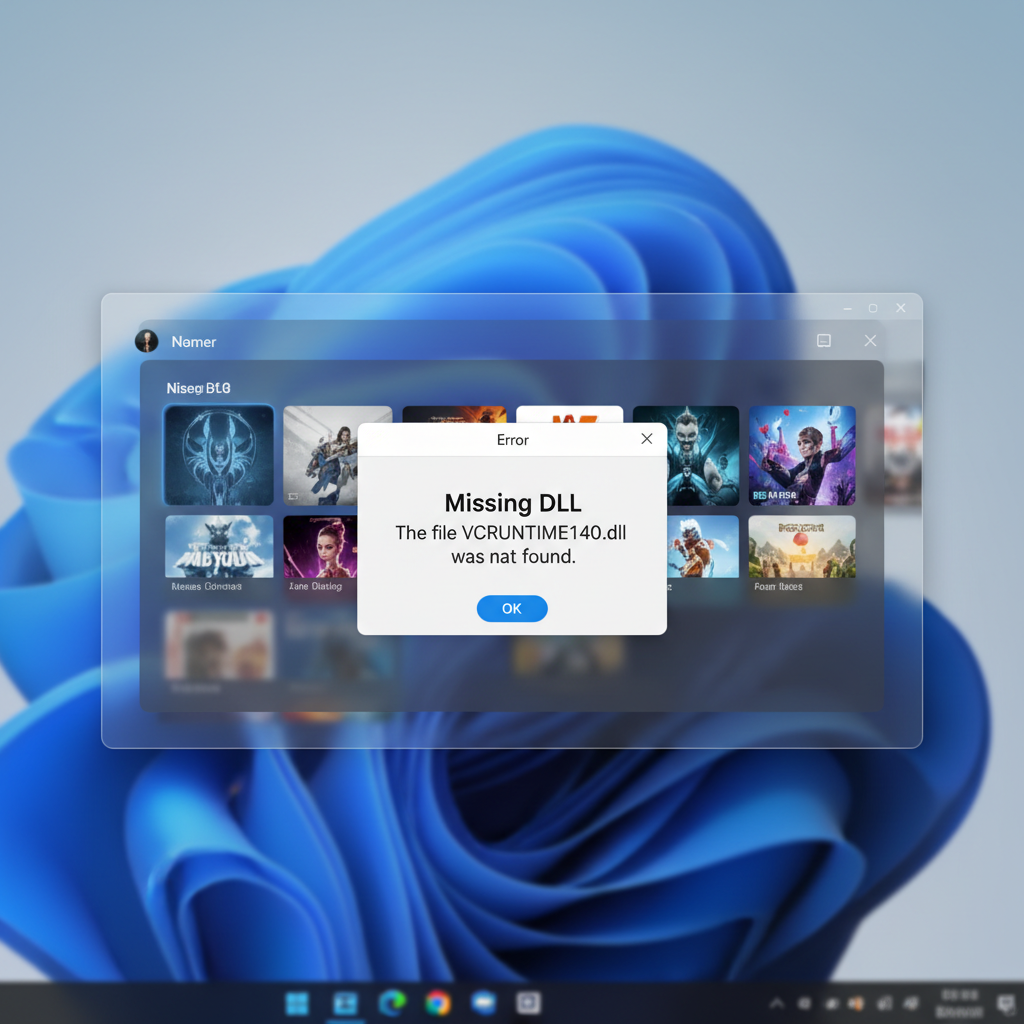
What “Missing DLL” means for games (and why it happens)
A DLL file is a shared library that games and Windows components call for common functions, graphics, input, audio, and more. When Windows can’t load that library, the game stops immediately or throws a runtime error.
In practice, missing DLL issues for games typically come from a few buckets:
- Game files incomplete or corrupted after an update, interrupted download, or disk error
- Microsoft Visual C++ Redistributable missing or broken, common for “MSVCP” and “VCRUNTIME” errors
- DirectX components missing, common for “d3dx9_43.dll” and older titles
- Incorrect bitness (32-bit game trying to load a 64-bit DLL, or the other way around)
- Malware or over-aggressive antivirus quarantining files
- Windows system corruption where core dependencies fail to register or load
According to Microsoft, many app launch errors relate to missing or corrupted runtime components such as the Microsoft Visual C++ Redistributable packages, which games frequently depend on.
Quick self-check: identify which DLL family you’re missing
Before you change anything, copy the exact DLL name from the error dialog. That filename usually tells you the fastest fix.
Use this table as a shortcut so you don’t waste time on steps that won’t help.
| Missing DLL example | Usually related to | Most common fix |
|---|---|---|
| VCRUNTIME140.dll, MSVCP140.dll | Microsoft Visual C++ runtime | Repair/reinstall VC++ Redistributables |
| d3dx9_43.dll, D3DCompiler_43.dll | Legacy DirectX (June 2010 components) | Install DirectX End-User Runtime |
| XINPUT1_3.dll | DirectX input component | Install DirectX runtime, then reboot |
| api-ms-win-crt-runtime-l1-1-0.dll | Universal CRT / Windows Update | Windows updates + VC++ reinstall |
| UnityPlayer.dll or game-specific DLL | Game install or engine files | Verify files / reinstall the game |
If the DLL name looks random or game-specific (not Microsoft-branded patterns), treat it as an install integrity problem first, not a Windows problem.

Fix 1: Verify or repair game files (Steam, Epic, Xbox app)
For a lot of people, this is the most boring fix and also the one that works. If a game update broke something, a file verification restores what’s missing without guessing.
Steam
- Library → right-click the game → Properties
- Installed Files → Verify integrity of game files
Epic Games Launcher
- Library → click the three dots on the game
- Select Manage → Verify
Xbox app / Microsoft Store games
- Settings → Apps → Installed apps → select the game
- Advanced options → Repair (try) → Reset (if repair fails)
If you’re following how to fix missing dll files for games and you skip verification, you often end up “fixing Windows” for a game that simply has a broken install.
Fix 2: Install or repair Microsoft Visual C++ Redistributables
When the error mentions MSVCP or VCRUNTIME, you’re almost always dealing with Visual C++ runtime packages. Many games ship installers for these, but installs can fail silently.
What tends to work:
- Open Windows Settings → Apps → Installed apps
- Search for Microsoft Visual C++
- If your entries allow it, try Modify → Repair
- If repairs fail, uninstall the affected versions and reinstall fresh from Microsoft
According to Microsoft, you should install Visual C++ Redistributable packages from official sources because mismatched or tampered files can cause application failures and security risk.
Tip that saves time: many modern games need both x86 and x64 redistributables, even on 64-bit Windows, because some launchers or components still run 32-bit.
Fix 3: Reinstall DirectX components (especially for older games)
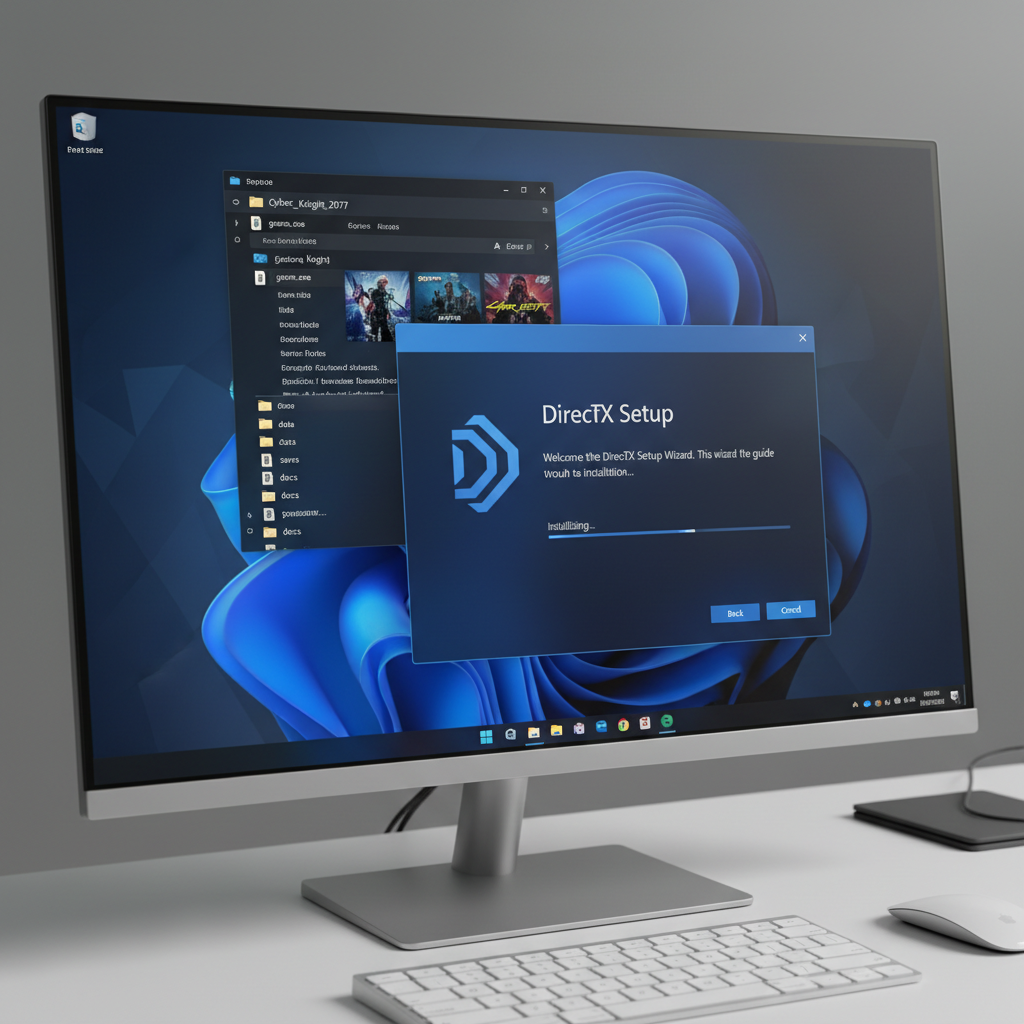
DirectX is confusing because Windows 10/11 include DirectX, yet older titles still need legacy components that are not installed by default. That’s where missing d3dx9_43.dll and similar errors usually come from.
Common, safe approach:
- Look inside the game folder for something like _CommonRedist\DirectX or DXSETUP.exe
- Run the installer as administrator
- Reboot, then launch the game again
If the game doesn’t include it, Microsoft provides the DirectX End-User Runtime (June 2010) package. According to Microsoft, that package installs optional legacy DirectX 9/10/11 components used by older applications.
Fix 4: Don’t download random DLLs—use safe replacements instead
When people search how to fix missing dll files for games, they often land on “DLL download” sites. I’d avoid that in most cases, not because every file is malicious, but because you can’t easily verify provenance, version, and architecture.
Safer replacements usually look like this:
- If it’s Visual C++, install the matching redistributable from Microsoft
- If it’s DirectX legacy, run the DirectX runtime installer or the game’s bundled DXSETUP
- If it’s .NET-related, enable/install the required .NET version through Windows Features or Microsoft’s installer
- If it’s game-specific, verify files or reinstall, and check antivirus quarantine
If you already downloaded a DLL and dropped it into System32 or the game directory, roll that back if possible. At minimum, scan your system with Windows Security, and consider restoring to a known good state.
Fix 5: Check antivirus quarantine, mods, overlays, and “cleanup” tools
This is the sneaky category: the DLL isn’t missing because it never existed, it’s missing because something removed it, blocked it, or replaced it.
- Antivirus quarantine: open your AV history, restore the file if you’re confident it’s a false positive, then add an exception for the game folder
- Mods: temporarily remove mod loaders and injected DLL mods, then retest
- Overlays: disable Discord overlay, GeForce Experience overlay, Steam overlay for a quick check
- PC “optimizers”: these sometimes delete shared components or “unused” files, uninstall them if problems started right after a cleanup
There’s no universal rule here, but if the error began right after you added a mod pack or changed security settings, that timing matters.
Fix 6: Repair Windows system files (SFC/DISM) when nothing else works
If multiple games fail with different missing DLL errors, or the errors mention Windows API sets, the issue might be Windows component corruption. This is where built-in repair tools help.
According to Microsoft, the System File Checker (SFC) can scan and restore missing or corrupted system files, and DISM can repair the Windows image that SFC relies on.
Practical, careful workflow
- Open Command Prompt or Terminal as Administrator
- Run: sfc /scannow
- If SFC reports it couldn’t fix everything, run: DISM /Online /Cleanup-Image /RestoreHealth
- Reboot, then test the game again
If you’re not comfortable with elevated commands, it’s reasonable to ask someone experienced, because mistakes can create more confusion than progress.
Key takeaways before you try “one more fix”
- Start with file verification if the DLL looks game-specific or the issue started after a patch.
- Use official runtimes for Visual C++ and DirectX, not random DLL sites.
- Match x86/x64 requirements, many games need both VC++ variants.
- Look for the trigger like a mod, antivirus action, or interrupted update.
- Escalate to SFC/DISM when the problem affects many apps, not just one title.
Conclusion: a reliable order of operations that usually works
If you want a clean, repeatable approach, do it in this order: verify game files, install or repair Visual C++ packages, install DirectX legacy components if the DLL points there, then check antivirus and mods, and only after that move to Windows repairs. This sequence avoids the most common time-wasters.
If you try these steps and the same error persists, don’t keep stacking random fixes, grab the full error text, note your Windows version and where the game is installed, then you’ll have what you need to get targeted help.
FAQ
How do I fix missing DLL files for games without downloading DLLs?
Verify the game install, then install the official dependencies: Microsoft Visual C++ Redistributables and DirectX legacy components when applicable. Those are the safe, normal sources for the files most games need.
Why does the game run on my friend’s PC but not mine with the same Steam install?
Usually it’s a dependency difference: your friend already has the right VC++ or DirectX components installed, or their antivirus isn’t quarantining something. File verification helps, but runtime installs often make the real difference.
Is it safe to put a missing DLL into the game folder?
Sometimes games legitimately load local DLLs, but manually placing DLLs from unknown sources is risky and can create version mismatches. If you must troubleshoot, prefer reinstalling the official package that provides that DLL.
What if the missing DLL is “api-ms-win-crt-runtime-l1-1-0.dll”?
This one often ties to Universal CRT components and Windows updates, plus Visual C++ installs. Make sure Windows Update is current, then repair or reinstall the Visual C++ packages.
Will reinstalling the game always fix missing DLL errors?
Not always. Reinstalling helps when game files are corrupt, but if the root cause is a missing runtime (like VC++), the same error can come right back until that dependency is installed.
Can GPU driver updates fix missing DLL file errors for games?
Occasionally, especially if the crash is tied to graphics components, but missing-DLL popups are more often runtime or install integrity issues. I’d update drivers after you handle VC++ and DirectX basics.
When should I contact game support or a technician?
If multiple games fail, SFC/DISM reports persistent corruption, or security software repeatedly quarantines files, it may be worth contacting the game publisher or a qualified technician. In managed work/school PCs, you may need IT help to install dependencies.
If you’re dealing with repeated launch failures and you’d rather not chase each missing file one by one, it can help to follow a simple checklist and keep notes of which runtime installs you’ve already tried, that way troubleshooting stays predictable and you avoid risky “DLL download” detours.