
how to host a multiplayer game server for free usually comes down to one tradeoff: you can save money, but you pay with setup time, stability limits, or stricter player caps.
If your goal is a casual server for friends, a free setup can work surprisingly well, especially for games that support peer hosting, LAN-style servers, or lightweight dedicated server binaries. If you want something closer to “always on” with low lag for players across the U.S., free options exist, but you’ll need to be realistic about performance and uptime.
This guide walks through the main free routes, how to choose the right one, and the practical steps that tend to trip people up (ports, NAT, router settings, and basic security). I’ll keep it grounded in what actually works for most home networks.

Pick the “free” path that fits your game and your group
Before you touch router settings, decide which hosting model matches your game. Different games support different server types, and that choice determines everything else.
- Host on your own PC: You run the server software locally. Best for small groups, you control everything, but your upload speed matters.
- Free cloud or PaaS tier: Some platforms offer limited always-on compute. Great for learning, often not great for steady real-time gaming.
- Free game-server platforms: Some communities and providers offer limited free instances with queues, ads, or sleep timers.
- “Listen server” inside the game: The host is also a player. Easiest, but hosting player’s connection and CPU become the bottleneck.
If you’re trying to figure out how to host a multiplayer game server with minimal friction, starting with a listen server or a local dedicated server is usually the most predictable.
Reality check: what “free” hosting usually limits
People get frustrated because they expect free hosting to behave like a paid dedicated server. In most cases, something has to give.
- Uptime: free instances may sleep when idle or restart on timers.
- Performance: limited CPU/RAM causes rubber-banding or slow ticks under load.
- Player caps: you may be fine at 4–8 players, then things fall apart at 12+.
- Network constraints: NAT, CGNAT, or strict firewalls block inbound traffic.
- Support: you troubleshoot yourself, which is fine until it isn’t.
According to the U.S. Federal Communications Commission (FCC), broadband upload speeds and latency can vary significantly by provider and plan, which matters more for hosting than most people expect.
Quick self-check: are you a good candidate for hosting at home?
This is the fastest way to avoid wasted hours. If you hit multiple “no” answers, a free cloud-style option or a friend hosting might be less painful.
- Upload speed: Do you have at least a few Mbps of reliable upload, not just “up to” on paper?
- Network type: Are you behind CGNAT (common on some fiber, wireless, and mobile ISPs)?
- Router access: Can you log into your router and add port forwarding rules?
- PC availability: Can a machine stay on during play sessions without throttling?
- Comfort level: Are you okay updating server files, checking logs, and basic firewall rules?
If your ISP uses CGNAT, you might not be able to accept inbound connections at all without workarounds like a relay, VPN tunnel, or renting a public IP, and that’s where “free” starts to get complicated.

Step-by-step: host a free dedicated server on your PC (most common route)
how to host a multiplayer game server locally is straightforward once you treat it like a small IT setup: stable software, one open port, and predictable updates.
1) Get the correct server software
Many PC games ship a dedicated server tool via Steam Tools or a separate download. Use the official package when possible, because community builds can be outdated or risky.
- Install the dedicated server binary or tool.
- Create a separate folder for configs, saves, and logs.
- Run it once to generate default config files, then stop it.
2) Configure basics (name, slots, map, password)
Start boring: server name, max players, and a password. Password protection reduces random scans and drive-by joins.
- Server password: strongly recommended for “friends only.”
- Admin/OP credentials: store securely, don’t reuse personal passwords.
- Autosave/backup: enable if the game supports it.
3) Allow the server through your OS firewall
On Windows, you typically need an inbound rule for the server executable and the game port (UDP, sometimes TCP). On macOS/Linux, you’ll do the equivalent in the system firewall.
According to CISA (Cybersecurity and Infrastructure Security Agency), keeping software updated and limiting exposed services are core steps to reduce unnecessary risk, even for small personal setups.
4) Set up port forwarding on your router (if needed)
This is where most setups fail. You forward the game’s required port(s) to the local IP of the host machine.
- Give your host PC a reserved LAN IP (DHCP reservation), so it doesn’t change.
- Create a port forward rule to that LAN IP for the game’s documented port(s).
- If the game uses UDP, forward UDP, not just TCP.
5) Share the right address with friends
For internet play, friends usually need your public IP (or a hostname if you use Dynamic DNS) plus the port if it’s non-default. For local play, they use your LAN IP.
- Best practice: use a password, then share details in a private chat.
- Optional: Dynamic DNS if your public IP changes often.
Free hosting options compared (what to use when)
Not every game behaves well on every free tier. Use this table to choose based on what you’re optimizing for: easiest setup, always-on uptime, or best ping.
| Option | What it’s good for | Common limitations | Best-fit scenarios |
|---|---|---|---|
| Host on your own PC | Low cost, full control | Upload speed, power usage, router work | Friends-only, scheduled play sessions |
| Listen server (in-game) | Fastest to start | Host player becomes bottleneck | 2–6 players, short sessions |
| Free cloud tier VPS/PaaS | Public IP, offloads your home network | Sleep timers, CPU throttling, setup complexity | Learning projects, lightweight servers |
| Free game-server platforms | Convenient dashboards | Queues, ads, limited configs | Popular games with platform support |
If you’re prioritizing “my friends can join anytime,” free tiers often disappoint unless the provider clearly supports always-on behavior. For many groups, the practical sweet spot is hosting locally during play windows.
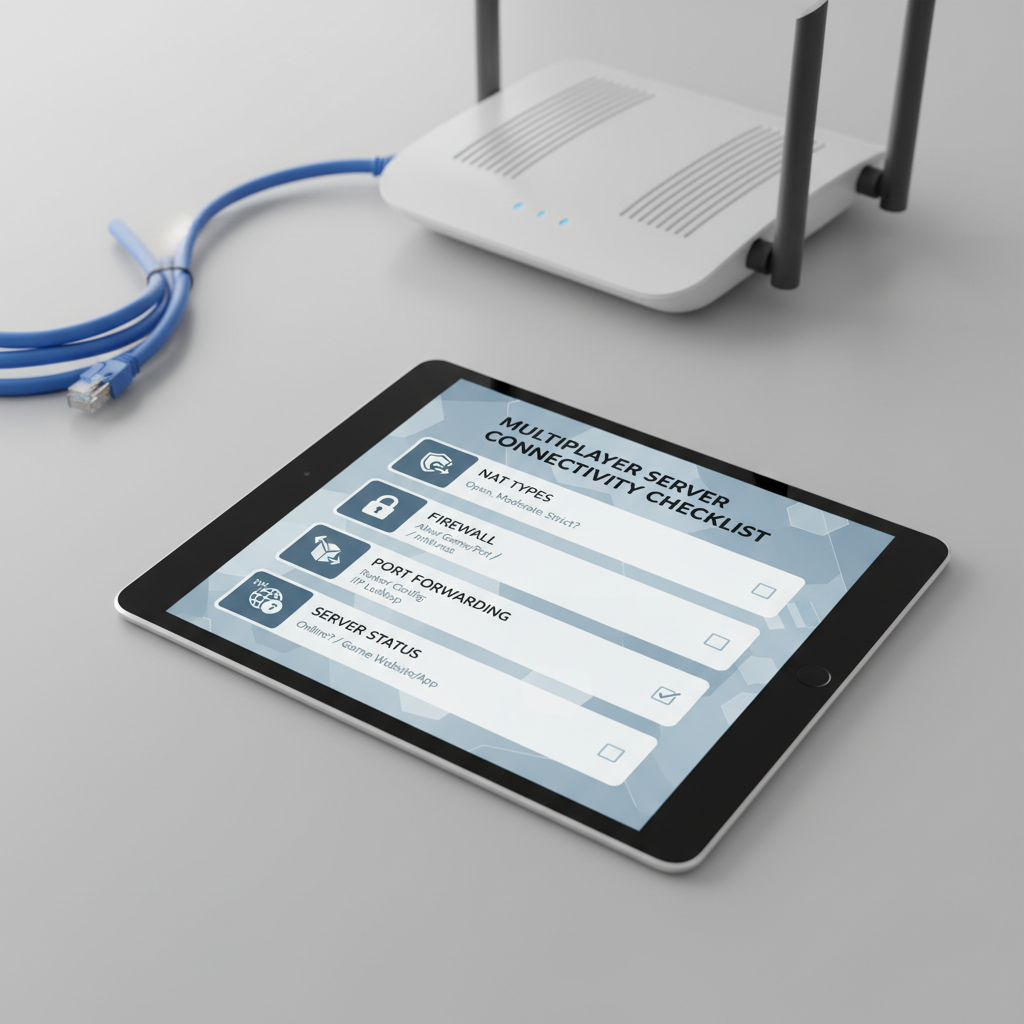
Troubleshooting joins, lag, and “server not found” issues
When people can’t connect, it’s usually not the game, it’s networking. These checks solve a large share of real-world failures.
Connection checklist (in the order that saves time)
- Confirm the server is actually listening: check console/log for “listening on port …” or similar.
- Verify local connect first: try joining from another device on the same Wi‑Fi/LAN.
- Double-check the port and protocol: many game servers use UDP only.
- Firewall rules: allow inbound for that port and the server executable.
- Public IP changes: if your IP changed, friends’ old bookmark won’t work.
- CGNAT: if you don’t have a real public IPv4, port forwarding won’t help.
If players connect but lag is awful
- Upload saturation: pause big uploads, cloud backups, or streaming on the host network.
- Server tick/CPU load: reduce view distance, entity count, or player slots.
- Wi‑Fi: if possible, plug the host PC into Ethernet.
- Region mismatch: a host in the West with players on the East will feel worse than people expect.
If you’re trying to learn how to host a multiplayer game server and you’re stuck on NAT errors, it’s often faster to test with a temporary VPN tunnel, just to confirm the game itself works end-to-end.
Security basics you shouldn’t skip (even for friends)
Exposing a port to the internet is normal for game servers, but it does increase your attack surface. You don’t need to panic, you do need a few habits.
- Use a server password for private groups.
- Keep the server updated, especially after major patches.
- Don’t run the server as admin/root unless the docs require it.
- Only open the ports you need, and close them when you’re done hosting.
- Back up saves/configs so a crash doesn’t wipe your progress.
If you’re hosting for minors or a public community, moderation tools and logging become more important, and you may want to look into a more controlled hosting environment.
Key takeaways and a practical next step
If you want how to host a multiplayer game server to feel manageable, treat it like a small project: pick the right hosting model, get one working local test, then open access to the internet.
- Fastest start: listen server or local dedicated server on your own PC.
- Most common blocker: router port forwarding and CGNAT.
- Best stability move: Ethernet for the host, plus conservative player caps.
Action step: set up the server locally first, confirm a second device on your network can join, then move to port forwarding and external joins. That sequence saves a lot of false debugging.
FAQ
How do I host a multiplayer game server free without port forwarding?
Usually you need either a platform that provides a public endpoint, or a tunneling/VPN solution that creates a reachable address. It can work, but latency and reliability vary by provider and region.
Why can my friends join, but only sometimes?
Intermittent joins often point to a changing public IP, router rules pointing to the wrong LAN IP, or the server machine sleeping/restarting. DHCP reservations and disabling sleep during sessions tend to help.
Is free cloud hosting good for real-time action games?
Sometimes, but many free tiers throttle CPU or sleep when idle, which can cause stutter or disconnects. It’s more reliable for lightweight servers or turn-based games than for twitchy FPS-style play.
What upload speed do I need to host at home?
It depends on the game, player count, and tick rate. In many cases, you can host a small group on modest upload, but if your connection buffers when someone starts a video call, expect gameplay to suffer.
How can I tell if I’m behind CGNAT?
If your router’s WAN IP doesn’t match what “what is my IP” sites show, or your ISP says you don’t have a public IPv4, CGNAT is likely. Your ISP support page may also mention it.
Should I use a static IP for a free server?
You don’t usually need a static public IP for friends-only hosting. A Dynamic DNS hostname is often enough, assuming your router supports it and your ISP doesn’t rotate IPs too aggressively.
What’s the safest way to share my server info?
Share it privately, add a password, and avoid posting your public IP in public forums. If you decide to run a public server, consider additional hardening and moderation tools.
If you’re trying to host for a small group but keep hitting router or CGNAT walls, a managed game-server option or a simple VPN-based approach can be a more “set it and forget it” path, even if you still aim to spend as little as possible.