
How to fix xbox series x game freezing usually comes down to narrowing one of a few repeat offenders: a bad update, storage quirks, heat throttling, unstable network services, or a specific game install that turned flaky.
Freezing feels random, but it rarely is. The value in troubleshooting with a little structure is you stop guessing, keep your saves safe, and avoid “fixes” that waste an entire evening.
This guide walks through quick checks, deeper fixes, and a simple decision path for when the issue is the console versus one game. I’ll also call out the spots where it makes sense to stop and use official repair options instead of forcing it.

What “freezing” usually means on Xbox Series X
People say “freezing” to describe a few different behaviors, and your fix depends on which one you see. Before you change settings, try to name the symptom.
- Game freezes but Xbox Guide still opens: often a game-level issue, cache, or storage problem.
- Full system lock (Guide won’t open): more often overheating, firmware issues, or a severe crash.
- Freeze during online play only: network stability, NAT, Quick Resume edge cases, or service outages.
- Freeze at the same spot every time: corrupted game data, a buggy patch, or a specific in-game setting.
According to Xbox Support, power cycling and keeping the console updated are among the first recommended steps for performance and stability issues, because they clear temporary states and deliver system fixes.
Fast triage: 5-minute checks before you go deeper
If you want the shortest path to an answer, do these in order. Each one either fixes the freeze outright or gives you a clue about the cause.
1) Check Xbox status and your network basics
Freezing that looks like “hangs” in menus, matchmaking, or loading can be a service hiccup. According to Microsoft’s Xbox Status page, outages can impact sign-in, multiplayer, cloud saves, and purchases.
- Visit the Xbox Status page and confirm services are up.
- Restart your modem/router if online-only freezing keeps happening.
- If you use Wi‑Fi, try Ethernet for one session as a test.
2) Quit the game and relaunch (don’t rely on Quick Resume yet)
Quick Resume is convenient, but it can amplify instability after a patch or after long idle time.
- Press Xbox button → highlight the game → Menu button → Quit.
- Relaunch and see if the freeze returns in the same place.
3) Do a full power cycle
This clears more than a quick restart.
- Hold the console power button for about 10 seconds until it shuts down.
- Unplug power for 60 seconds, plug back in, then boot.
4) Check for system and game updates
- Settings → System → Updates
- My games & apps → Manage → Updates
5) Note if it’s one game or multiple
If multiple games freeze, treat it like a console environment issue. If it’s one title, focus on reinstalling and game-specific settings sooner.
Common causes (and the fix that matches each cause)
Here’s the practical mapping most people need. It’s not about doing everything, it’s about doing the right thing for your pattern.
| Likely cause | Typical signs | Most useful fix to try |
|---|---|---|
| Corrupted game install | Freezes in one game, repeatable spot | Reinstall game, clear reserved space if applicable |
| Storage pressure or external drive hiccups | Slow loads, stutter, freezing after installs/updates | Free space, move game to internal SSD, test without external |
| Overheating/airflow | Freezes after 30–90 minutes, fan gets loud, cabinet setup | Improve ventilation, clean dust, keep vents clear |
| Network/NAT instability | Freezes mainly online or when resuming | Power cycle router, use Ethernet, review NAT |
| System software edge case | Multiple games freeze, UI oddities | Offline update check, reset (keep games/apps) if needed |
Self-check: pinpoint your freezing pattern (quick checklist)
Run this like a mini diagnostic. Your answers tell you where to start.
- Only one game freezes and others run fine.
- Freezing started right after an update (system or game).
- It happens mostly after Quick Resume, not after a fresh launch.
- It happens after long sessions or in a closed cabinet.
- It happens online, especially in matchmaking, menus, or co-op.
- You’re low on internal storage or frequently move games between drives.
Key takeaway: if your pattern screams “heat” or “storage,” spending an hour on network tweaks won’t pay off, and vice versa.
Step-by-step fixes (by scenario)
Pick the scenario that matches your checklist. If you’re unsure, start with the “One game only” path since it’s the least disruptive.
If only one game freezes
- Clear Quick Resume for that game: Quit it completely, then relaunch fresh.
- Reinstall the game: uninstall, restart console, reinstall.
- Move it to internal storage if it’s on an external drive, then retest.
- Reduce in-game strain: lower graphics options if the title supports it, disable uncapped frame rate modes if available.
If the freeze is tied to a single save file, try loading an older save or starting a new profile to test. Don’t delete the original save until you confirm the issue.
If multiple games freeze (system-wide symptoms)
- Confirm system update: Settings → System → Updates.
- Clear persistent state (safe, quick): Settings → Devices & connections → Blu-ray → Persistent storage → Clear.
- Restart, not standby: Settings → General → Power options → Full shutdown, then boot.
If things still feel “sticky,” a reset can help, but pick the least destructive option.
- Settings → System → Console info → Reset console → Reset and keep my games & apps
This often resolves software corruption without forcing a full re-download, though you may need to sign in again and reapply some settings.
If freezing happens after long play sessions (possible overheating)
- Give it air: keep several inches of clearance around all vents, avoid closed cabinets.
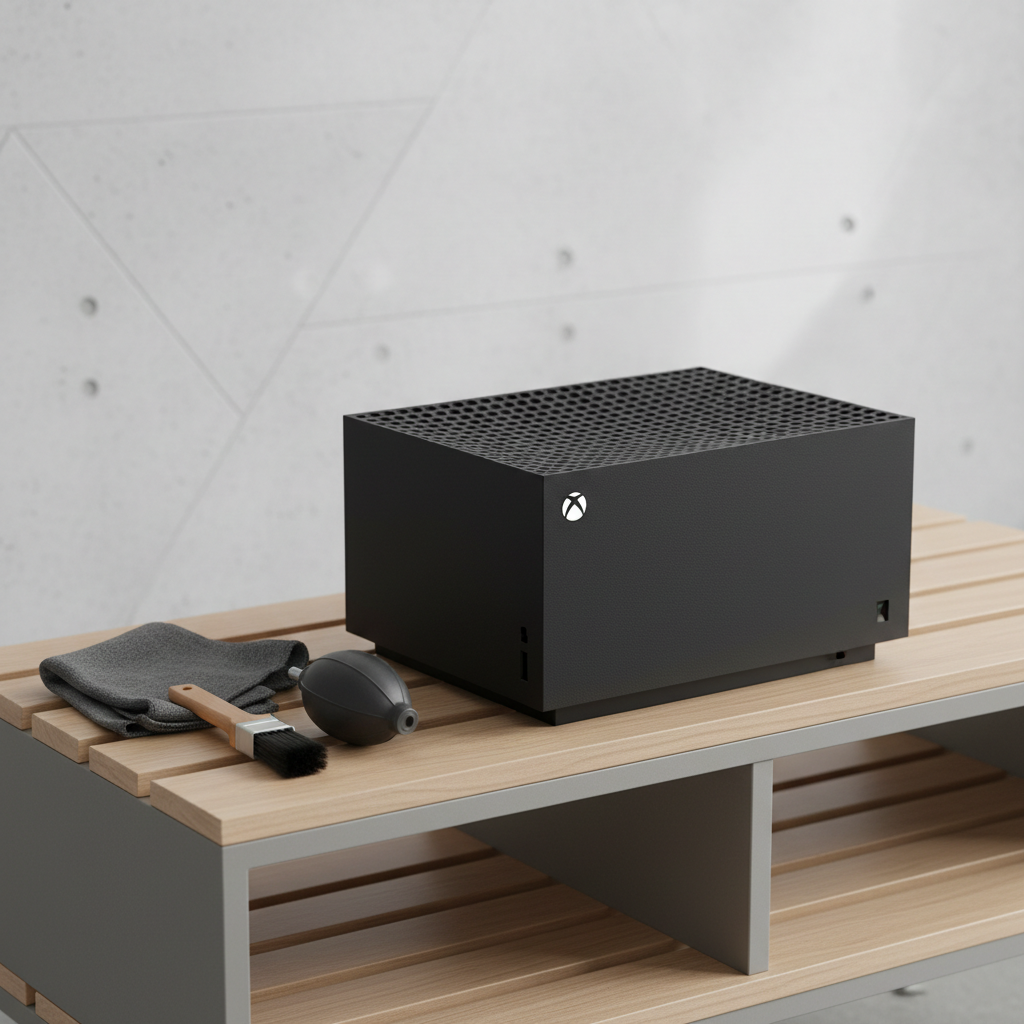
- Clean dust gently: power off, unplug, use compressed air in short bursts. If you’re unsure, consider professional cleaning rather than opening the console.
- Retest with the console upright if it’s currently placed in a tight horizontal slot.
Overheating can cause stutters, audio glitches, then a hard freeze. If you repeatedly hit that progression, treat airflow as the priority fix.
If freezing happens mainly online
- Test Ethernet for one evening. If freezes disappear, Wi‑Fi interference becomes the likely culprit.
- Check NAT: Settings → General → Network settings. Moderate/Strict NAT can amplify matchmaking weirdness.
- Clear alternate MAC address: Network settings → Advanced settings → Alternate MAC address → Clear, then restart.
Don’t ignore the obvious: if your household has heavy streaming or your router is aging, intermittent packet loss can look like a “game freeze” when the client waits for a response.

Practical “do this now” routine (15–30 minutes)
If you don’t want to overthink it, this is the sequence that tends to cover the highest-value fixes without being reckless.
- Quit the game and relaunch fresh (skip Quick Resume once).
- Full power cycle the console.
- Install pending system and game updates.
- Free up internal SSD space (aim for breathing room, not single-digit GB).
- Move the freezing game to internal storage and test.
- Retest in an open-air setup for one session.
Key point: change one variable, then test. If you do five tweaks at once, you’ll never know what actually fixed the freezing.
Mistakes that waste time (or make freezes worse)
- Endlessly reinstalling everything when the issue is heat or a failing external drive.
- Assuming Quick Resume is harmless for every game, especially online titles after patches.
- Ignoring storage location: some games behave noticeably better on the internal SSD than on slower externals.
- Using aggressive cleaning: liquids, vacuums, or opening the console can create risk. If you’re not comfortable, stop early.
Also, if you see other symptoms like random shutdowns, odd power behavior, or repeated overheating warnings, treat that as a hardware stability hint rather than “just a buggy game.”
When to contact support or consider repair
If you’ve tried the targeted scenario fixes and the console still hard-freezes across multiple games, it’s reasonable to escalate.
- Freezes persist after a reset (keep games/apps) and after testing without any external drive.
- Visible overheating behavior even in a well-ventilated space.
- System UI freezes outside games, like Settings or Home dashboard stalls.
According to Microsoft/Xbox Support guidance, using official service options helps avoid warranty issues and ensures the right diagnostics for hardware faults. If your console is under warranty, starting there usually saves frustration.
Conclusion: get to a stable baseline, then add features back
Most people fix freezing by getting the console back to a clean baseline: fresh launch instead of Quick Resume, stable updates, enough internal storage headroom, and decent airflow. Once you have one solid session, you can re-enable conveniences and see what reintroduces the problem.
If you want one simple next move, do a full power cycle and test the same game from internal storage with good ventilation. If freezing still shows up across multiple titles, consider a reset that keeps games and apps, then move to official support if symptoms remain.
FAQ
Why does my Xbox Series X freeze only on one game?
That pattern often points to a corrupted install, a buggy patch, or a specific in-game setting. Reinstalling that title and testing from internal storage usually gives a clearer answer than changing system-wide settings.
Does Quick Resume cause Xbox Series X game freezing?
It can, especially for online games or right after updates. If a game freezes after resuming, quitting it fully and relaunching fresh is a clean test.
How much free space should I keep to avoid freezing?
There’s no single magic number, but very low free space can make updates, caching, and installs more fragile. Keeping a comfortable buffer on the internal SSD tends to reduce weird performance issues.
Will moving games to the internal SSD help freezing?
In many cases, yes, particularly if an external drive is slow, intermittently disconnecting, or struggling with certain workloads. It’s also an easy A/B test: move, play, and compare.
My Xbox freezes and then the audio loops, what does that suggest?
Audio looping can happen in hard locks caused by crashes, heat throttling, or unstable system state. Focus on ventilation and power cycling, then test whether multiple games show the same behavior.
Should I reset my Xbox Series X to fix freezing?
If the freezing affects multiple games and basic steps don’t help, a reset that keeps games and apps is a reasonable next step. If you’re worried about accounts or settings, double-check you can sign in and that cloud saves are syncing before you proceed.
How do I know if it’s overheating versus a software issue?
If freezes correlate with long sessions, a warm cabinet, or a loud fan ramping up, heat becomes a strong suspect. If it freezes immediately after a specific update or only in one game, software jumps higher on the list.
If you’re still stuck and you’d rather not keep trial-and-erroring, it can help to write down your exact freeze pattern, what storage the game runs on, and whether Quick Resume was active, then follow a single path end-to-end or share those details with support for faster triage.