
how to fix low volume in games only usually comes down to one of three things: a hidden per-app volume setting, the wrong output device or audio “mode,” or a game/driver feature that’s compressing sound.
It’s frustrating because everything else sounds fine, YouTube and Discord are loud enough, but the moment you launch a game the audio feels thin, distant, or capped. That “only in games” clue is actually useful, it narrows the hunt to game profiles, exclusive-mode behaviors, voice chat mixes, and spatial audio features.
This guide walks you through quick checks first, then deeper fixes for Windows, consoles, and common headset setups. I’ll also call out the spots people miss, like per-game mixer sliders, controller chat balance, and communication ducking.
Start here: confirm it’s truly “games only”
Before you change ten settings, do a 2-minute baseline check. You’re trying to learn whether the volume drop happens inside the game, in the OS mixer, or at the device level.
- Test outside the game: play a music track or YouTube at the same volume level you normally use.
- Test inside the game menu: many titles have separate sliders for master, SFX, music, dialogue, voice chat.
- Switch outputs once: toggle speakers ↔ headset in your system, then reopen the game.
If the game is quiet only on one output (for example, only on your USB headset), you’re likely looking at device enhancements, a chat mix dial, or a headset app profile.
Most common causes (real-world patterns)
When people search how to fix low volume in games only, these are the culprits that show up repeatedly across PCs and consoles, not because they’re “mysterious,” but because the settings live in different places.
- Per-app volume is turned down: Windows Volume Mixer, Steam/overlay tools, or console mixer sliders.
- Wrong default output or format: the game starts on a different device, or a low-gain hands-free profile.
- Chat/game balance is off: headset inline controls, controllers, Xbox/PlayStation party mix, Discord attenuation.
- Enhancements compress sound: Loudness Equalization, “night mode,” dynamic range compression, spatial audio profiles.
- Exclusive mode / signal format mismatch: apps fight over the device, or sample-rate choices trigger odd behavior.
Also worth saying out loud: some games ship with conservative defaults, especially if “dynamic range” is set for home theater or if “streamer mode” lowers peaks.
Quick self-check checklist (find your bucket fast)
Pick the statement that matches your situation, then jump to the relevant fix section below.
- Only one game is quiet → suspect in-game mix sliders, dynamic range, or a corrupted config.
- All games are quiet, other apps normal → suspect Windows per-app mixer, “communications” ducking, spatial audio, or headset software.
- Games are quiet only on headset, speakers fine → suspect chat mix dial, headset app EQ, hands-free Bluetooth profile, or USB DAC gain.
- Games get quiet when voice chat starts → suspect Discord attenuation, console party mix, Windows communications setting.
- Only explosions/music are quiet, dialogue OK → suspect dynamic range compression/night mode or a mis-set SFX slider.
Windows 10/11 fixes that solve most cases
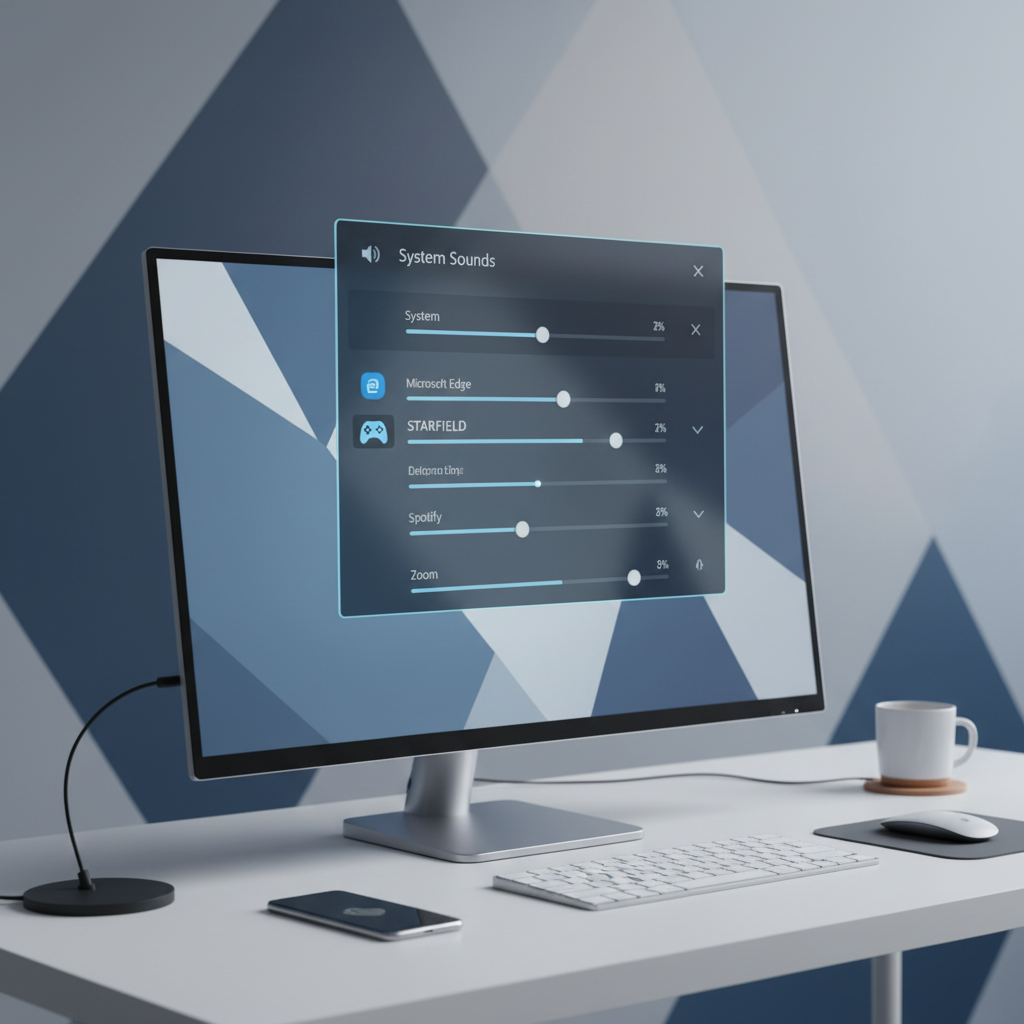
On PC, the fastest wins are in the Sound settings pages. According to Microsoft Support, you can control per-app volume from the Sound mixer, and communication settings can reduce other audio when Windows detects calls.
1) Fix Windows Volume Mixer per-game level
- Open Settings → System → Sound → Volume mixer.
- Find your game in the app list, set it to a reasonable level.
- If the game isn’t listed, launch it, then alt-tab back and re-check.
If you use multiple monitors, also check any overlay mixers (NVIDIA ShadowPlay/GeForce Experience overlay, Xbox Game Bar) that can store per-app values.
2) Disable “communications” volume ducking
- Open Control Panel → Sound → Communications.
- Select Do nothing, apply changes.
This matters more than people expect if you keep Discord open or Windows detects your mic as “in call.”
3) Check default output, device format, and enhancements
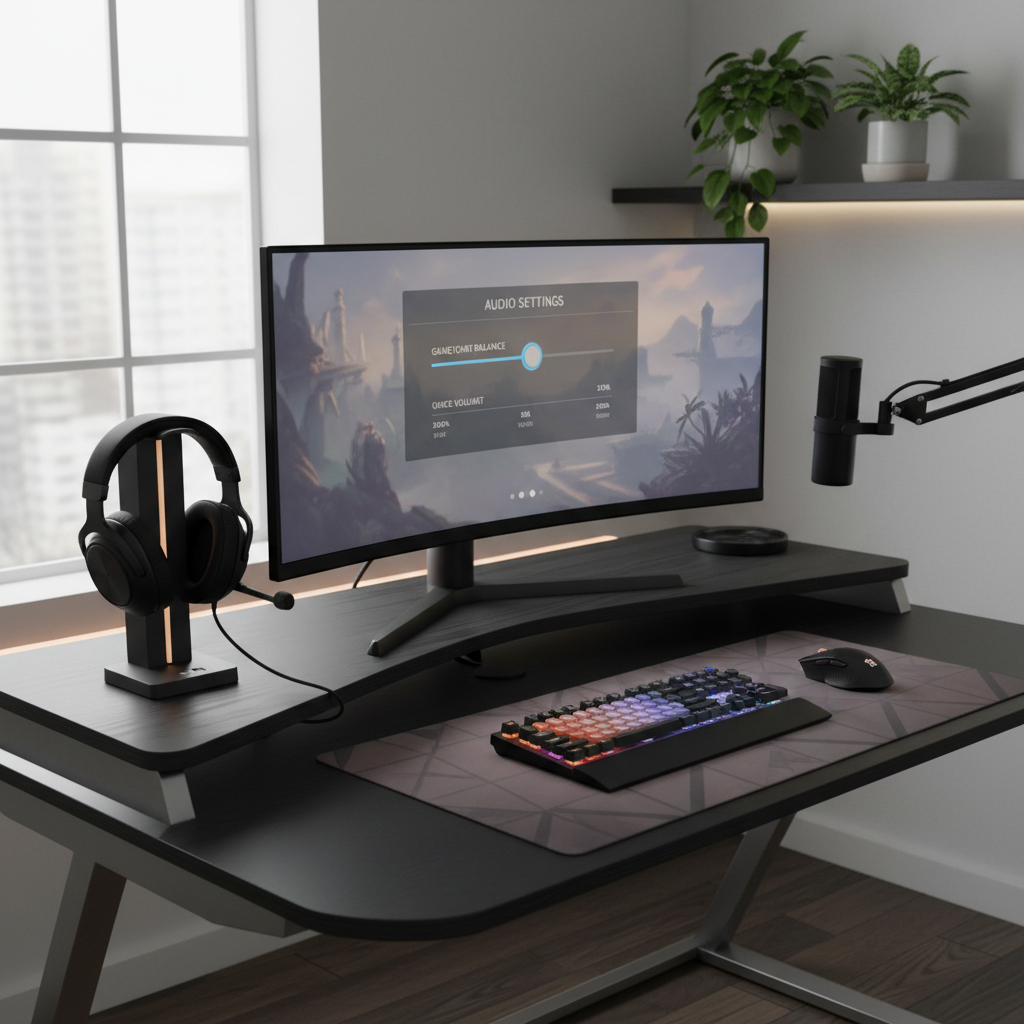
- Settings → System → Sound → pick your output device, confirm it’s the one you actually use.
- Open More sound settings → your device → Properties.
- On Enhancements, consider toggling off processing like Loudness Equalization (test both ways).
- On Advanced, test a common format like 24-bit, 48000 Hz, then restart the game.
Some games behave oddly when the device runs at unusual sample rates, and some enhancement stacks can lower perceived loudness by compressing peaks.
4) Spatial audio and “virtual surround” conflicts
If your headset app provides virtual surround, and Windows spatial audio also runs, you can get a flatter mix. Try using only one layer.
- Right-click speaker icon → Spatial sound → Off (test).
- Then test your headset software’s surround mode, or do the opposite.
According to Dolby, spatial audio modes can change perceived loudness and imaging, so toggling them is a legitimate troubleshooting step rather than superstition.
Game-side settings that quietly cap volume
If you’re still stuck on how to fix low volume in games only, look inside the game next. This is where “everything else is fine” can mislead you, because many games separate loudness into multiple sliders.
Check these in-game settings
- Master volume vs SFX vs Music vs Dialogue sliders.
- Dynamic range: set to “TV,” “Night,” “Home theater,” “Studio,” depending on options. If explosions feel small, try a wider range; if everything feels capped, try less compression.
- Voice chat mix: some games lower game audio when voice chat activates.
- Output device selector: a few titles let you pick speakers/headset explicitly.
A practical trick: reset audio settings to default, then adjust only master volume and one slider at a time. If a config file got corrupted, defaults can restore normal gain.
Headsets, controllers, and console-specific gotchas
Console and headset hardware add one more layer: physical chat/game mixers. The game can be “quiet” simply because the hardware mixer prioritizes voice.
Xbox
- Check Guide → Audio & music and your headset mix slider.
- If you’re in a party, look for Party chat output and balance options.
According to Xbox Support, party and headset settings can affect how game audio mixes with chat, so it’s worth checking even if you didn’t change anything intentionally.
PlayStation (PS4/PS5)
- Open Sound → Audio Output, verify output device and volume.
- Check Control Center/Quick Menu for Sound and Voice Chat Balance.
If voice chat balance is shifted toward chat, many games will feel quieter across the board.
Bluetooth headsets on PC
This one is classic: Bluetooth can switch to a lower-quality hands-free mode when the mic activates, which can also reduce perceived loudness.
- Try switching the input mic to a different device (like a USB mic), keep audio on the stereo headset profile.
- Or use wired/USB mode for gaming sessions where you need stable audio.
A practical step-by-step plan (with a small decision table)
If you want a clean workflow, use this order. It minimizes random toggling and helps you confirm the actual cause.
| Symptom | Most likely cause | Best first fix |
|---|---|---|
| Only one game is quiet | In-game mix / dynamic range / bugged config | Reset in-game audio, then adjust master + SFX |
| All games quiet, apps fine | Per-app mixer or communications ducking | Windows Volume Mixer, then set Communications to Do nothing |
| Quiet only on headset | Chat/game balance or headset software profile | Center the mix dial, disable extra processing temporarily |
| Volume drops when chatting | Discord attenuation / console party mix | Disable attenuation, re-check party/chat balance |
| Sound is flat, no punch | Compression, spatial conflicts | Toggle enhancements/spatial audio, test one at a time |
Key takeaways: fix the mixer first, then the device, then the game, then the “fancy” features like spatial audio. That order solves the majority of cases without turning your system into a science project.
Common mistakes that waste time
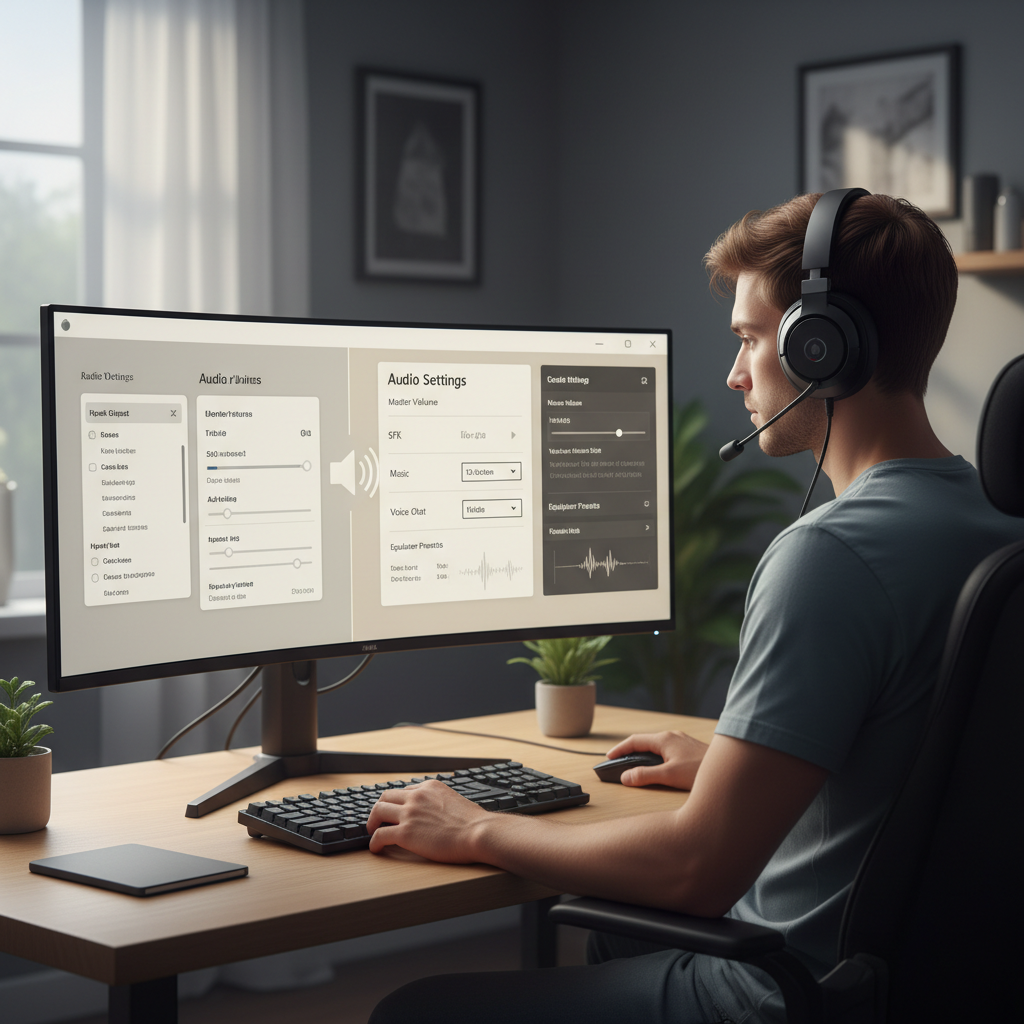
- Cranking Windows volume to 100 and ignoring the game’s own slider, it can stay at 20 and you’ll chase the wrong thing.
- Stacking enhancements from Windows + headset app + third-party EQ, then wondering why loudness feels inconsistent.
- Changing five settings at once, you lose the “why” and can’t replicate the fix later.
- Assuming drivers are always the answer, updates help sometimes, but mixer and chat balance cause more “games only” issues in practice.
When to seek additional help (and what to gather first)
If you’ve done the mixer/device/game checks and the issue persists across multiple games, it may be a driver, firmware, or hardware problem. According to NVIDIA and AMD support guidance, audio issues can also stem from GPU HDMI/DisplayPort audio devices or driver conflicts, so documenting your setup helps.
- Write down your output device (USB headset model, HDMI monitor audio, DAC).
- Note whether the problem happens on speakers and headset or only one.
- Capture screenshots of Windows Volume Mixer and in-game audio settings.
- If you suspect hearing discomfort or pain at higher volumes, lower volume and consider consulting a medical professional.
At that point, contacting the headset manufacturer or your PC OEM support is usually more efficient than endless trial-and-error, especially if firmware tools exist for your model.
Conclusion: get your game audio back to normal without over-tweaking
If you’re still thinking about how to fix low volume in games only, keep it simple: verify per-app volume, stop communication ducking, confirm the right output device, then check in-game sliders and chat balance. Once you find the one setting that caused the drop, you can turn the “extras” back on carefully, one at a time.
Action you can take right now: open the Volume Mixer while the game runs, then set Windows Communications to Do nothing, those two steps solve a surprising amount of “only in games” cases.
FAQ
Why is my volume low only in games but YouTube is fine?
That pattern usually points to a per-app mixer level, an in-game master/SFX slider, or a chat/communications feature lowering game audio. Check the OS mixer while the game runs, then look for dynamic range or voice mix settings inside the game.
How do I fix low volume in games only on Windows 11?
Go to Settings → System → Sound → Volume mixer and confirm the game app volume. Then open Control Panel → Sound → Communications and set it to Do nothing, especially if you use Discord or any voice features.
Why does my game get quieter when I join Discord or a party chat?
Many setups apply attenuation, meaning other audio drops when voice chat is active. Disable Discord attenuation, re-check Windows communications settings, and verify any headset chat/game balance slider.
My headset is quiet in games but loud in music, what should I check?
Start with the headset’s own app or hardware controls, a chat mix dial or an “FPS” EQ profile can change perceived loudness. Also confirm you’re not in a Bluetooth hands-free mode if your mic activates.
Should I enable Loudness Equalization to make games louder?
It can help perceived loudness in some cases, but it can also make audio feel less dynamic and “smaller.” Treat it as a test: toggle it on/off and keep whichever sounds more natural for your games.
Does spatial audio make game volume lower?
It can, depending on the spatial mode and how your headset software also processes sound. If you’re running multiple surround/spatial layers, try using only one and compare.
Is updating audio drivers the best fix?
Driver updates can help, but they’re not always the fastest path for “games only” issues. It’s usually smarter to confirm mixer levels, output device selection, and communication ducking first, then update drivers if symptoms persist.
If you’re trying to fix this across multiple games and devices and want a more “set it once” approach, consider standardizing your audio chain: one primary output device, one spatial/surround layer, and a saved in-game audio preset, it reduces the chance of hidden mixes fighting each other.