
how to backup steam games to external ssd is mostly about saving time and bandwidth without breaking your Steam library or forcing a full re-download later. The good news is you can do this in a few reliable ways, and the “best” method depends on whether you want a true backup, a portable library, or a migration to a new PC.
People usually care about this for one reason: Steam games are huge, and reinstalling can be slow or capped by your ISP. But there’s a second reason that matters even more in real life, Steam games often involve multiple folders, permissions, and a library path that Steam expects to stay consistent.
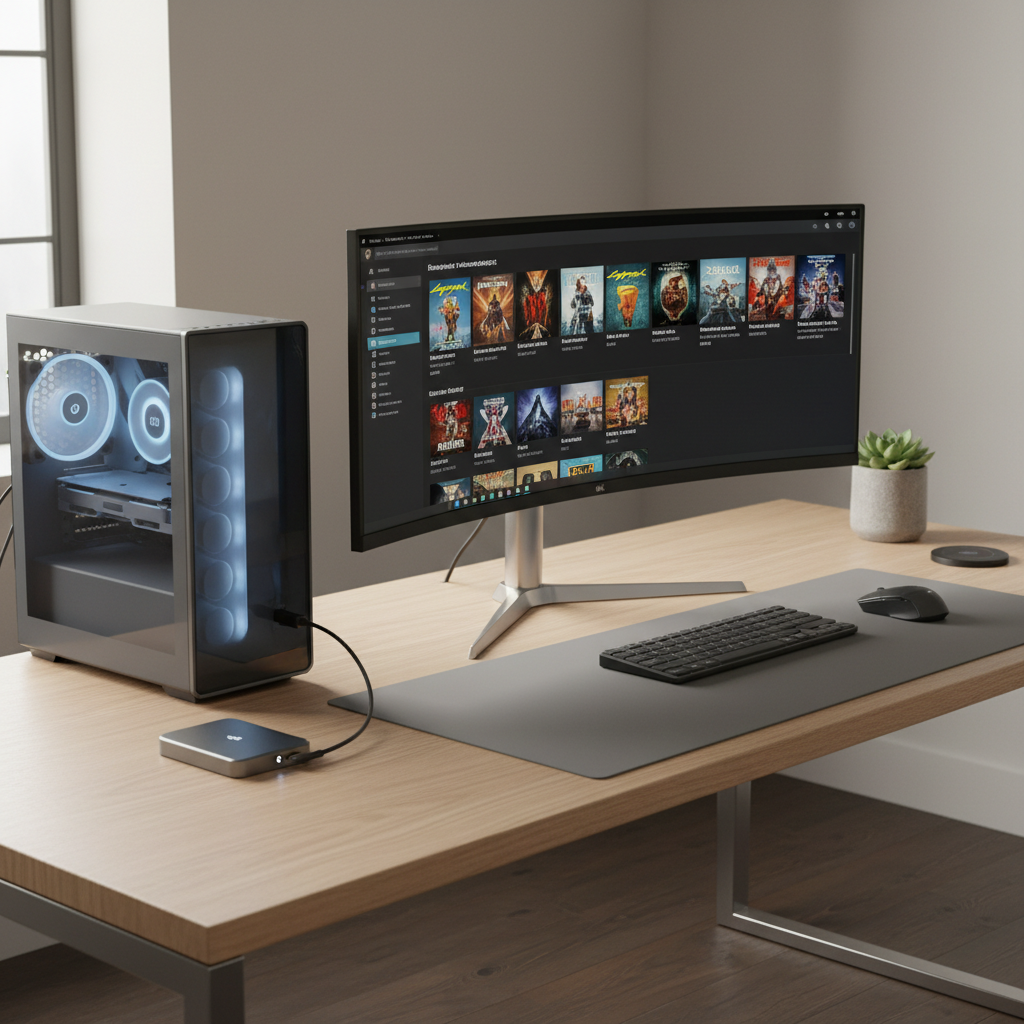
This guide walks through what to back up, how to do it using Steam’s built-in tools or manual copy, plus quick checks to confirm your backup will actually work when you restore.
What “backup” means for Steam games (and what it does not)
Steam has a few different storage pieces, and mixing them up is where most failed restores come from. In most cases, you only need the game files, not your whole Steam install.
- Game install files: the big files under a Steam Library folder (this is what saves you from re-downloading).
- Saves and settings: often handled by Steam Cloud, but not always; some games store saves locally.
- Mods and custom content: typically in the game folder or Workshop folders, sometimes separate.
According to Valve (Steam Support), Steam Cloud can sync many games’ save data, but support varies by title. Translation: don’t assume your local saves are safe unless you verify that game uses Cloud and has synced recently.
Quick decision table: pick the right backup method
If you want this to be painless, decide your goal first, then pick the method that matches.
| Goal | Best method | Pros | Watch-outs |
|---|---|---|---|
| Restore games without re-downloading | Copy Steam library folder | Fast, simple, works for most users | Need correct folder paths and file verification |
| Keep a portable library on the SSD | Create a Steam Library on the SSD | Install/run from SSD, easy to manage | Performance depends on SSD speed and USB port |
| Make an archival backup (offline) | Steam “Backup and Restore Games” | More “packaged” backup flow | Less flexible, sometimes slower than direct copy |
Pre-flight checklist before you copy anything
A quick check now prevents the classic “Steam doesn’t see my games” moment later.
- Confirm your SSD format: for Windows, NTFS is usually the smoothest for large files and permissions. exFAT can work, but edge cases happen.
- Know your current library path: common default is C:\Program Files (x86)\Steam\steamapps\common, but many users have multiple libraries.
- Close Steam: fully exit Steam (not just minimize) so files aren’t locked mid-copy.
- Check free space: leave extra headroom on the SSD so future updates don’t immediately fail.
Key point: if your main goal is how to backup steam games to external ssd so you can restore later, copying the entire Steam library folder is usually the most straightforward path.
Method 1: Copy your Steam Library folder to the external SSD (most common)
This method keeps game files intact and lets you “re-detect” them later. You are not copying the whole Steam program, just the libraries.
Step-by-step (Windows)
- Exit Steam completely.
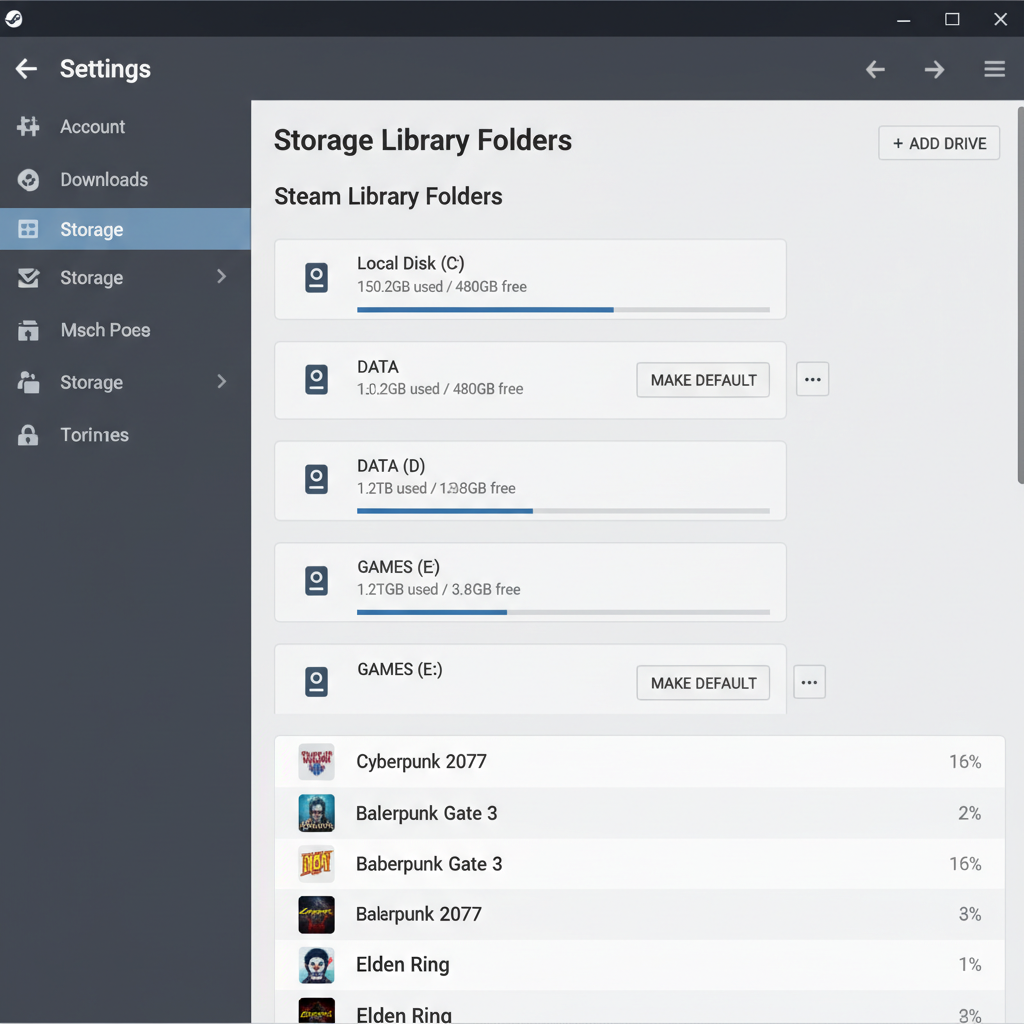
- Open Steam and note your library folders: Steam > Settings > Storage.
- In File Explorer, go to each library folder you use (often the folder that contains steamapps).
- Copy the entire library folder (or at minimum steamapps and steamapps\common) to a folder on your external SSD.
- Wait for the copy to finish, then safely eject the SSD.
If you have Workshop-heavy games, consider also copying steamapps\workshop. That folder can be large, but it’s where a lot of subscribed mod content lives.
Method 2: Create a Steam Library on the external SSD (portable setup)
If you want the SSD to act like a living library, this is cleaner than doing a “backup-only” copy. Steam can install, update, and validate directly on that drive.
Steps
- Connect the SSD.
- Open Steam > Settings > Storage.
- Add a new library folder on the external SSD.
- Use Steam’s Move Install Folder option per game (or reinstall to that location if you prefer).
This approach reduces ambiguity later because Steam already “knows” the library. The tradeoff is you’re treating the SSD as active storage, so unplugging it while Steam is running can cause file errors.
Method 3: Use Steam’s built-in “Backup and Restore Games” feature
Steam still includes a backup flow in many client versions, though its placement in menus can change. If you prefer an in-client wizard and a more “bundle-like” backup, this is worth trying.
- Open Steam.
- Find the backup/restore option (often under Steam menu items or via game management options).
- Select games to back up and choose your external SSD as the destination.
In practice, this can be slower than copying the library folder, and some users still end up validating files afterward. But it’s a legitimate option if you want Steam to manage the backup set.
How to restore from the external SSD (without re-downloading)
Restoring is where most guides get vague. The basic trick is: put game files where Steam expects them, then let Steam verify.
Restore to the same PC (or a new Windows install)
- Install Steam (the client) and sign in.
- Connect the external SSD.
- In Steam > Settings > Storage, add the library folder on the SSD (or the folder where you copied your library).
- Go to Library, pick a game, click Install, and choose that same library location.
- Steam should detect existing files and switch to Verifying instead of downloading everything.
If Steam starts downloading a large amount anyway, pause the download, double-check that the folder contains steamapps and the game exists under steamapps\common, then try again.
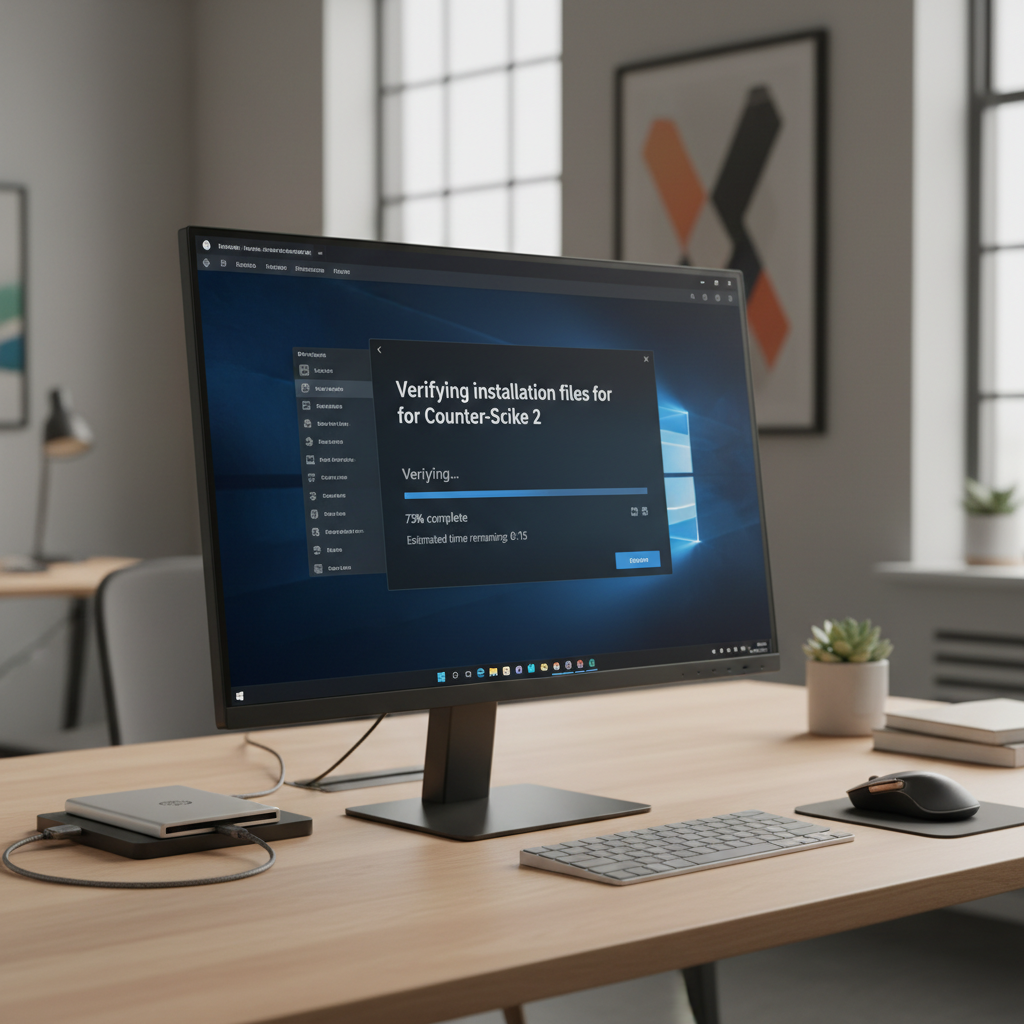
Key takeaway: for how to backup steam games to external ssd and restore smoothly, the restore step usually works best when you add the SSD library first, then use Install to trigger detection and validation.
Common mistakes that waste time (and how to avoid them)
- Copying only the game folder: many games live under steamapps\common, but Steam also needs the app manifest files in steamapps to recognize installs cleanly.
- Forgetting multiple library folders: if you installed games across drives, you need to back up each library.
- Using a flaky USB hub/cable: random disconnects can corrupt files. If copies fail, plug into a main USB port and try a better cable.
- SSD format issues: exFAT sometimes causes permission or file handling weirdness in edge cases; NTFS is typically less fussy on Windows.
- Assuming saves are included: game files are not the same as save files, especially for older titles and some indie games.
Practical tips: make your backup more “future-proof”
- Label your SSD folder clearly: for example, SteamLibrary_Backup_2026.
- Keep a small text note with the library paths you used and which PC the backup came from.
- Validate after restore: in Steam, game Properties > Installed Files > verify integrity. It catches partial copies.
- Check Steam Cloud status per game: open the game’s Steam store page or properties where applicable to confirm Cloud support.
When you might need extra help
If Steam repeatedly re-downloads entire games even though files are present, or if you see frequent “disk write error” messages, you may be dealing with permissions, drive health issues, or a failing cable/enclosure. In those cases, checking Steam Support docs and running Windows disk checks can be reasonable; if the SSD shows warning signs (disconnects, unreadable folders), consider talking with a qualified technician before relying on it as your only copy.
Conclusion: a clean backup is mostly about the library folder and a good restore flow
If your goal is speed, copying the full Steam library folder to an external SSD and then letting Steam detect and verify during reinstall is usually the most dependable route. Pick one method, test-restore one smaller game first, then scale up once you trust the process.
Next action: connect your SSD, locate your Steam library folders, and back up steamapps plus steamapps\common today, then do a quick restore test on a single title to confirm it behaves the way you expect.
FAQ
How do I backup Steam games to an external SSD without re-downloading later?
Copy the entire Steam library folder (including steamapps and its manifest files) to the SSD, then add that library in Steam on restore and use Install to trigger detection and verification.
Is it better to copy the “common” folder or the whole “steamapps” folder?
In many situations, backing up steamapps is safer because it includes appmanifest files that help Steam recognize what is installed, not just the game data folders.
Will this also back up my game saves?
Not always. Many games use Steam Cloud, but not all. If a game stores saves locally, you may need to back up those save folders separately.
Can I play Steam games directly from an external SSD?
Usually yes, if you create a Steam Library on the SSD and install or move games there. Performance depends on the SSD and your USB connection, and unplugging mid-session can cause issues.
Why does Steam try to download the game even though the files are on the SSD?
Common causes include adding the wrong library folder, missing manifest files, or an incomplete copy. Point Steam to the folder that contains steamapps, then run verification.
What SSD format should I use for Steam backups on Windows?
NTFS is typically the least troublesome on Windows, especially with large files. exFAT can work for cross-platform use, but compatibility quirks can appear depending on your setup.
Do I need to back up the entire Steam program folder too?
In most cases, no. You can reinstall the Steam client quickly and then reconnect your libraries. The big time saver is preserving the game content in the library folders.
Does Steam’s “Backup and Restore” tool work as well as manual copying?
It can work, and some people prefer the guided workflow, but manual library copying tends to be faster and more transparent when you troubleshoot.
If you’re setting this up because you’re low on internal storage or you reinstall Windows often, a “portable library” setup on the SSD usually feels less stressful than doing one-off backups, and it makes restores predictable when you add the drive back to Steam.