
How to fix game audio out of sync usually comes down to one of three things: added latency in your audio path, extra processing in your video path, or a mismatch introduced by capture/streaming software.
If you’re playing normally, it feels like a small issue, but your brain catches it instantly, footsteps land late, gunshots feel “floaty,” dialogue stops matching lip movement, and suddenly the game just feels off. If you record or stream, it’s worse, because viewers notice before you do.
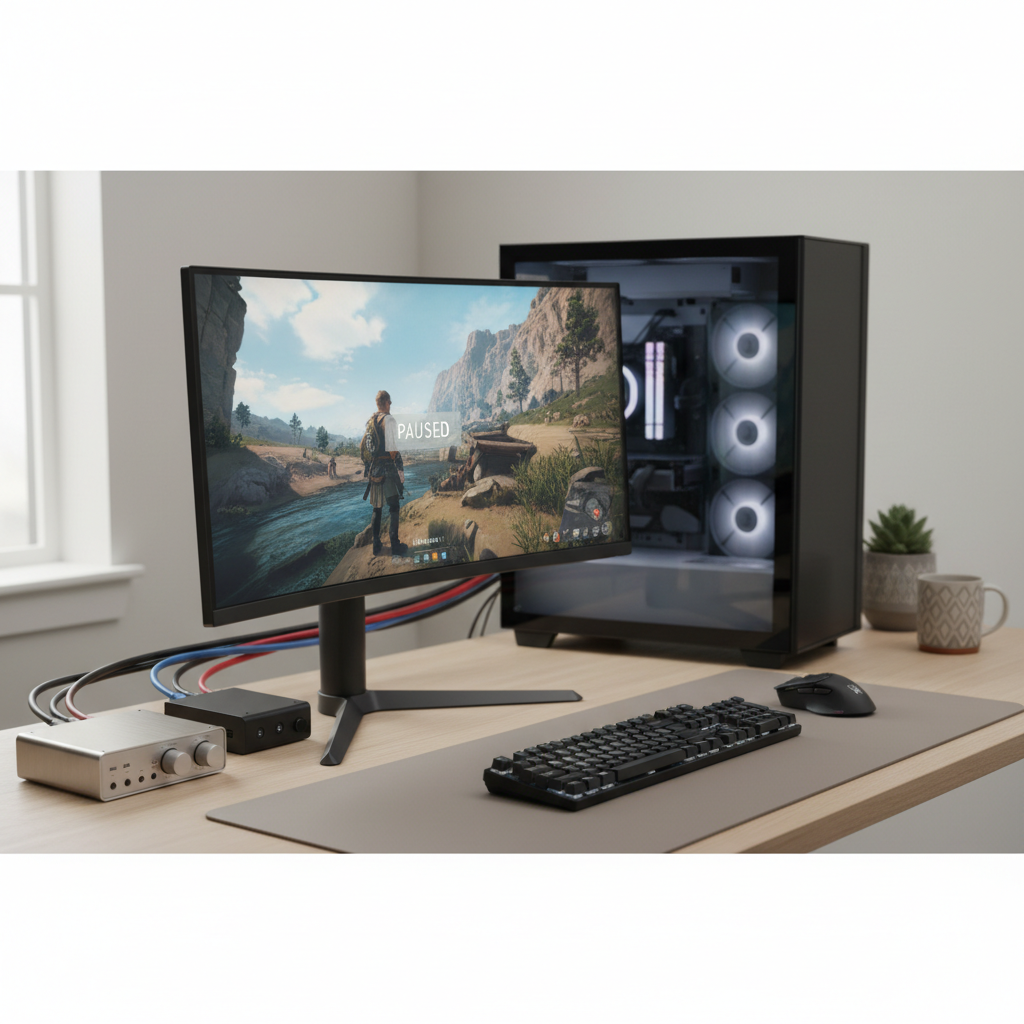
The good news is you rarely need a “mystery setting.” In most cases you can identify where the delay enters, then either remove it or compensate with a small offset. Below is a practical path: quick diagnosis, common root causes, then fixes for PC, console, and streaming tools.
Quick diagnosis: is the delay in playback, capture, or both?
Before you change ten settings, confirm where the sync problem exists. A lot of people chase the wrong target: they fix the stream while the local game is fine, or vice versa.
- Only you hear it (headphones/speakers) but recordings look fine: local playback latency, usually Bluetooth, audio enhancements, or driver buffer.
- Your recording/stream is off but your local play feels fine: capture software routing, capture card delay, audio monitoring, or per-source sync.
- Both local and recording are off: system-level timing, heavy CPU/GPU load, mismatched refresh/sample rates, or an audio device with large buffering.
A simple test that works: record 10 seconds where you click a menu button (a clear “beep” + visual flash), then watch the file back on a different device (phone works). If the file is off, it’s capture; if only your live play feels off, it’s monitoring/playback.
Common causes of game audio lag (what’s usually really happening)
Audio and video don’t travel through your setup at the same speed. Video paths often add a frame or two of delay, and some audio paths add far more than that.
Audio-side latency culprits
- Bluetooth headphones and some wireless headsets add noticeable delay, even when “gaming mode” exists.
- USB DACs/audio interfaces can introduce buffering, especially with large buffer sizes or unstable drivers.
- Windows audio enhancements (spatial sound, loudness equalization, third-party effects) can add processing delay.
Video-side latency culprits
- TV picture processing (motion smoothing, noise reduction) often delays video, making audio seem early/late.
- Capture cards add delay to the preview window; the pass-through to the TV/monitor may be fine.
- Frame rate conversion or running games in borderless modes sometimes changes timing behavior under load.
According to Microsoft Support, Windows audio troubleshooting often involves verifying the selected output device, disabling enhancements, and updating drivers, because these are frequent sources of playback issues and timing problems.
Fast fixes you can try in 10 minutes (most success per effort)
If you want the highest-probability fixes without deep tinkering, start here. You’re trying to reduce processing, reduce buffering, and keep everything on stable defaults.
- Switch to wired audio (3.5mm or USB wired) as a test. If sync suddenly feels right, wireless latency was the main driver.
- Disable audio enhancements: Windows Sound settings → your output device → turn off enhancements/spatial features temporarily.
- Set your TV/monitor to Game Mode if you’re on console or HDMI to a TV. This reduces video processing delay.
- Close background heavy apps (browser with many tabs, RGB suites, overlays) and re-test; system load can destabilize timing.
- Update GPU + audio drivers and reboot. It’s not glamorous, but timing bugs and driver conflicts are real.
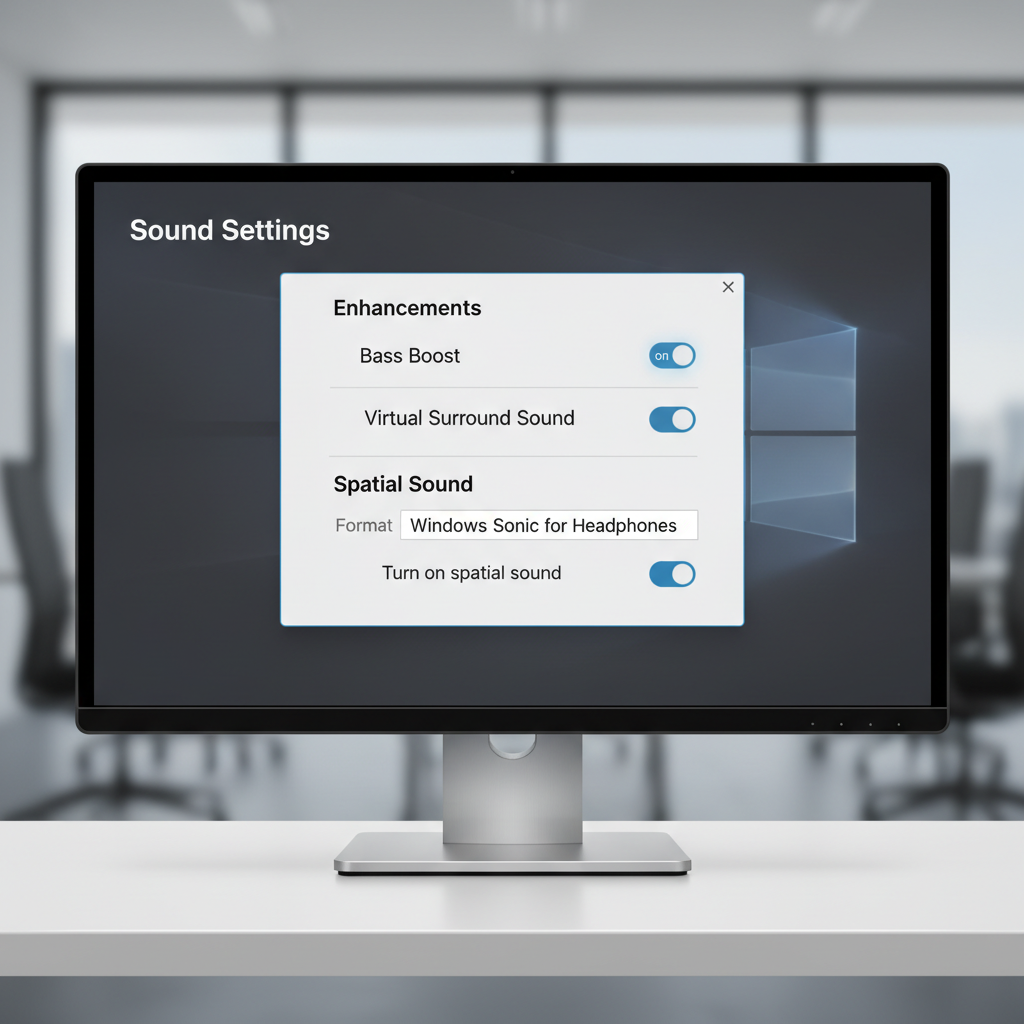
If one change fixes it, stop there and keep the rest of your setup stable. Sync problems often return when people “optimize” three other things after they already solved the root cause.
PC fixes: Windows, drivers, and buffer settings that actually matter
On PC, the most reliable path is removing extra processing first, then reducing buffer/latency where safe. Some changes can cause crackling if your system can’t keep up, so go step-by-step.
1) Match sample rates (avoid silent resampling weirdness)
In Windows Sound settings, check your output device format (often 48 kHz). If your interface/DAC software runs a different rate, Windows may resample, which sometimes creates delay or drift over time. Keep it consistent where possible.
2) If you use an audio interface, reduce buffer size carefully
- Open the interface control panel (ASIO/WDM tool) and reduce buffer size one step at a time.
- Re-test in game for 2–3 minutes; listen for pops or dropouts.
- If artifacts appear, move one step back up and keep it there.
3) Check GPU control panel low-latency options
Some players report better “feel” when GPU latency is managed consistently, especially under high load. This won’t directly realign audio tracks, but it can reduce the perception of mismatch when frames are unstable.
Console + TV/receiver setups: where sync often breaks
Console players often assume the console is at fault, but the TV and audio chain are usually the problem: TV processing delays video, or the receiver/soundbar adds audio processing.
Try this order (it avoids wasted effort)
- Turn on TV Game Mode, and disable motion smoothing or cinematic processing features.
- Bypass the receiver temporarily: connect console directly to TV and use TV speakers to test sync.
- Check AV receiver lip-sync settings (often called “Audio Delay” or “Lip Sync”). You may need to add delay to audio to match video, depending on your chain.
If you use eARC/ARC, keep in mind compatibility varies by TV and soundbar model. In real homes, small firmware differences can change timing, so updating TV and soundbar firmware is worth trying.
Streaming/recording fixes (OBS, capture cards, and monitoring)
For creators, how to fix game audio out of sync often means fixing the stream/recording timeline, not the game itself. The preview window is a common trap: capture previews can lag, while the actual file is fine.
Use this table to pick the right fix
| Symptom | Likely cause | Practical fix |
|---|---|---|
| Preview audio/video mismatch, but recording is OK | Preview latency from capture device | Don’t judge from preview; monitor via hardware pass-through or set up proper audio monitoring |
| Recording has delayed audio | Audio source arrives earlier than video source | Add a small sync offset to the audio source (milliseconds) in your capture app |
| Audio slowly drifts over time | Sample rate mismatch or unstable device clock | Match sample rates, avoid multiple USB audio devices, restart capture pipeline |
| Game feels fine, stream is off | Monitoring path delay | Disable monitoring on that source or monitor through the lowest-latency device |
OBS-specific tips (applies to similar apps too)
- Set a sync offset on the audio source when video capture adds delay. Start small (like 100–200 ms), then fine-tune.
- Avoid double-routing audio (e.g., capturing “Desktop Audio” and also adding an interface input). Duplicates can create comb filtering and perceived timing issues.
- Be cautious with filters (noise suppression, VST chains). Each filter adds processing time; stacks add up.
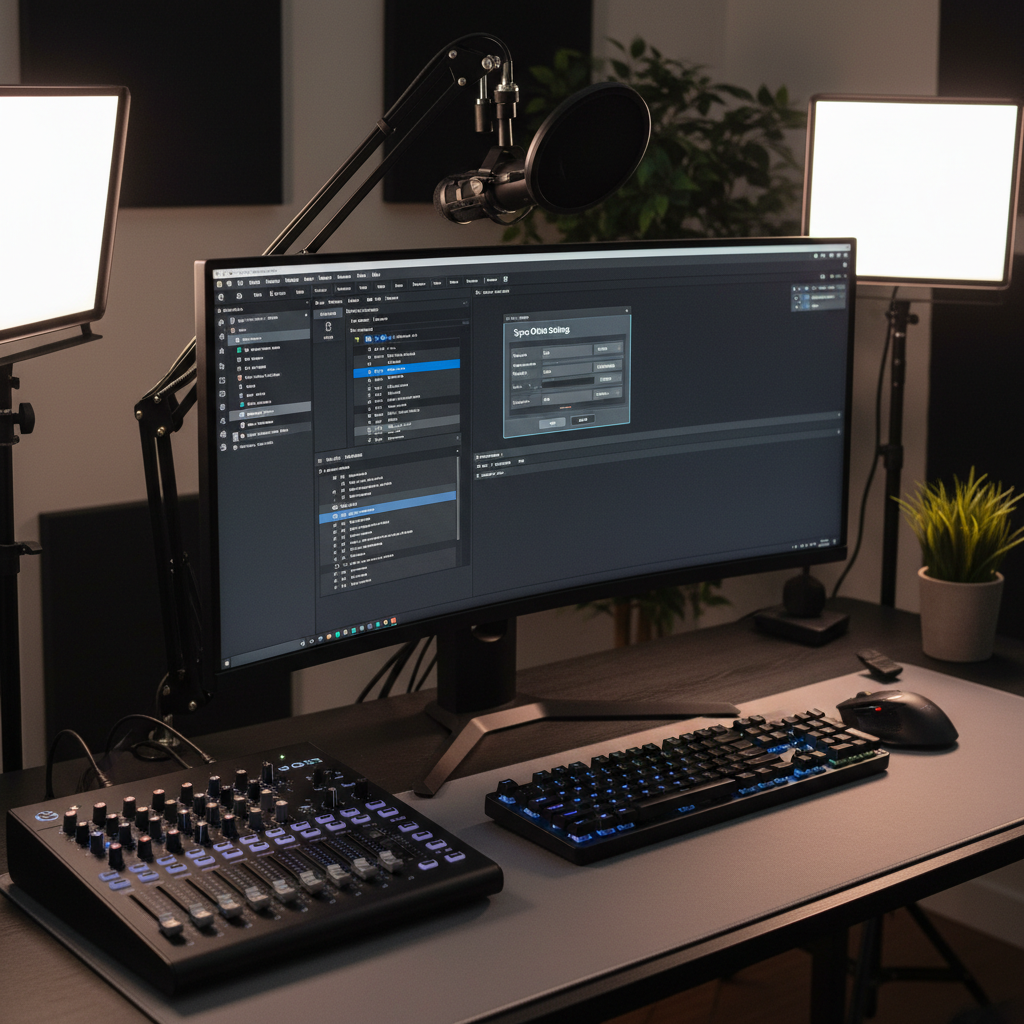
According to NVIDIA, capture and encoding performance depends heavily on system load and configuration, so keeping overhead low and avoiding conflicting capture paths can improve overall stability, which indirectly helps sync consistency.
Common mistakes that keep the problem alive
- Fixing “lip sync” by changing random refresh rates without confirming whether the issue is playback or capture; you end up introducing new variables.
- Using Bluetooth for monitoring while recording and then compensating offsets; you’re correcting a monitoring delay, not the actual stream timing.
- Stacking audio effects (enhancements, spatial audio, VST noise reduction) and expecting zero latency; real-time processing has a cost.
- Ignoring drift: if sync gets worse over minutes, it’s often clocking/sample rate mismatch, not a single fixed offset.
Key takeaways + a simple action plan
If you want a clean path that works in most setups, keep it boring: simplify the chain, confirm where the delay lives, then apply one targeted fix.
- Test wired audio to rule out wireless delay fast.
- Enable Game Mode on TVs and reduce video processing.
- For streams/recordings, apply a measured audio sync offset and avoid double-routing.
- For drift, match sample rates and reduce device conflicts.
If you’re still stuck, capture a short sample clip, note your full signal chain (console/PC → capture → app → output device), and change only one variable at a time. That’s the difference between fixing it in 20 minutes and losing a weekend.
FAQ
Why is my game audio delayed only when I use Bluetooth headphones?
Bluetooth commonly adds latency because audio is encoded, transmitted, then decoded, and some modes prioritize stability over speed. A wired headset test is the fastest way to confirm that’s the cause.
How do I fix game audio out of sync in OBS without guessing?
Record a short clip with a clear visual cue and sound cue, then measure the mismatch by replaying frame-by-frame if needed. Apply a small sync offset to the audio source, then re-test with the same cue.
My stream looks out of sync, but my recording is fine—what does that mean?
It often points to preview/monitoring latency rather than the actual output file. Many capture devices and apps display delayed previews, so judge sync using the saved recording or a viewer device.
Why does audio sync drift over time instead of being consistently off?
Drift usually suggests timing clock issues, sample rate mismatches, or unstable capture paths. Matching sample rates and simplifying audio devices tends to help more than adding a fixed offset.
Can TV settings really cause audio/video mismatch on consoles?
Yes, TVs can delay video with motion processing, making audio seem early or late. Game Mode reduces that processing, which is why it’s often the first console-side fix.
Should I change my game’s frame rate cap to fix audio sync?
Sometimes smoothing frame pacing improves perceived sync, but it’s rarely the root fix. Use it after you’ve ruled out wireless audio, TV processing, and capture/monitoring delays.
When should I seek professional help or contact support?
If you’re using specialized gear like AV receivers, multi-device mixers, or complex capture routing, vendor support can save time because firmware quirks and compatibility vary by model. If troubleshooting starts involving hearing issues or discomfort, it’s reasonable to consult a qualified professional.
If you’re trying to troubleshoot a stream or recording and you want a quicker answer, write down your full setup chain and the exact symptom (preview only, recording only, or both), then you can narrow to one fix instead of cycling through random settings.